
FAQ



How to Share Roasting Curves via E-mail [iOS]


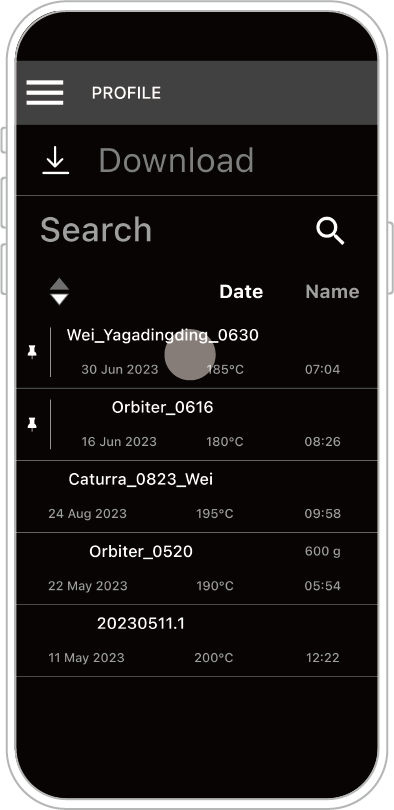
STEP 1: Select the roasting record you want to share.
(Files from both History and Roasting Curve can be shared.)
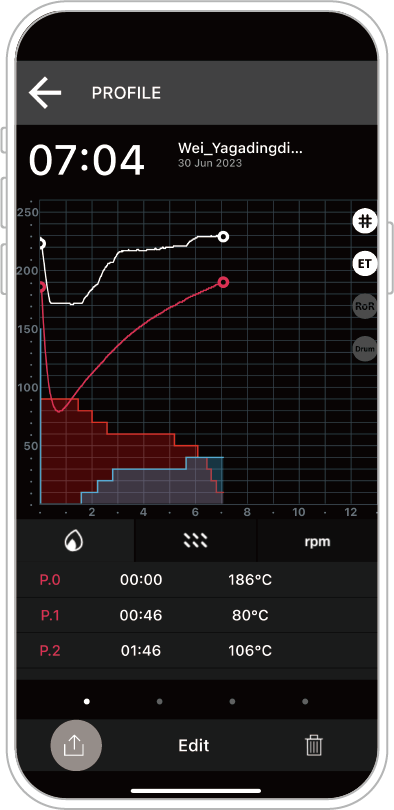
STEP 2: Tap the Share icon (bottom left) and select the ROP file format.
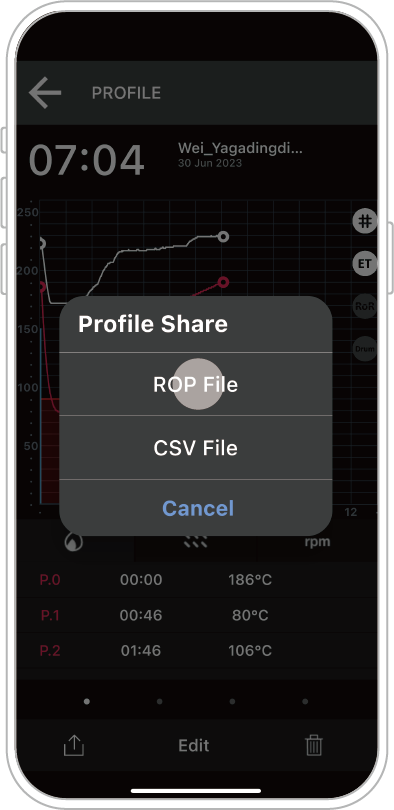
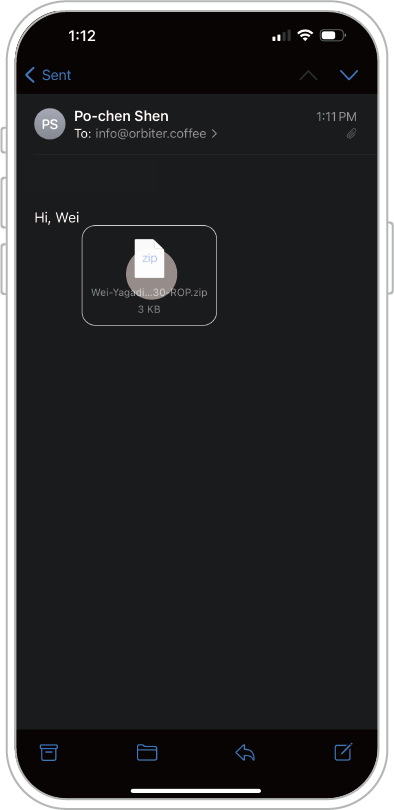
STEP 3: Choose the Mail app to send the file via e-mail.
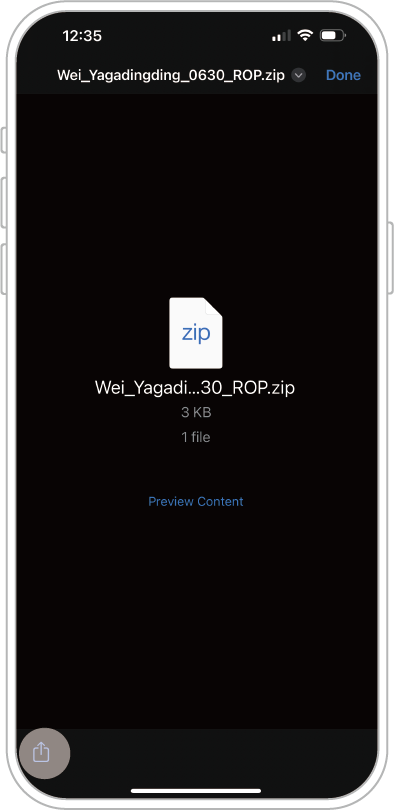
How to Share Roasting Curves via AirDrop [iOS]
Reminder: This operation is for sharing APP roasting curves between devices.
The example below uses [A] iPad and [B] iPhone:
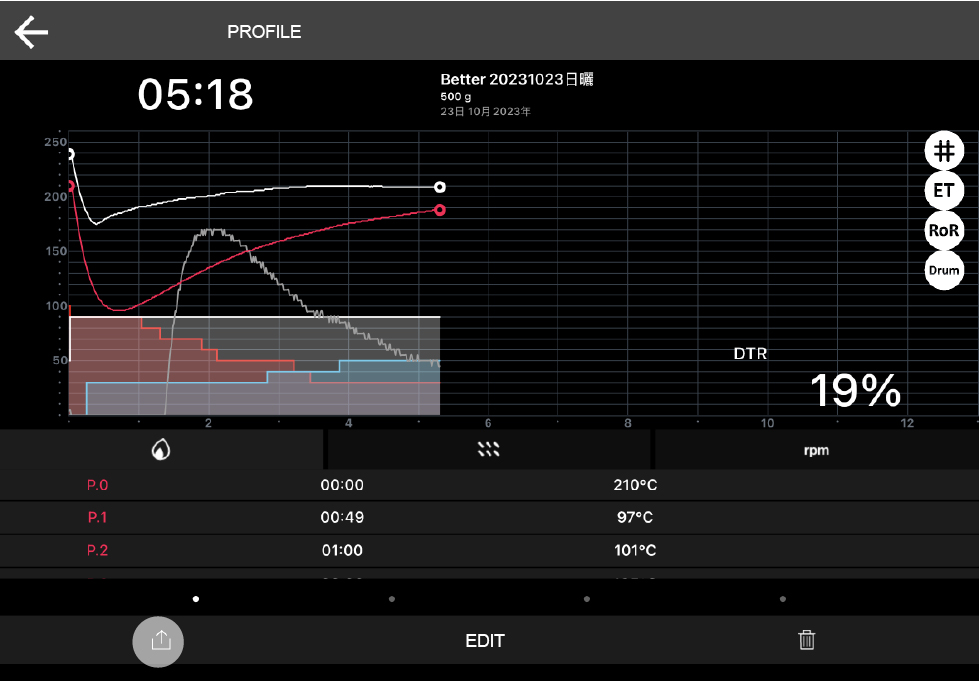
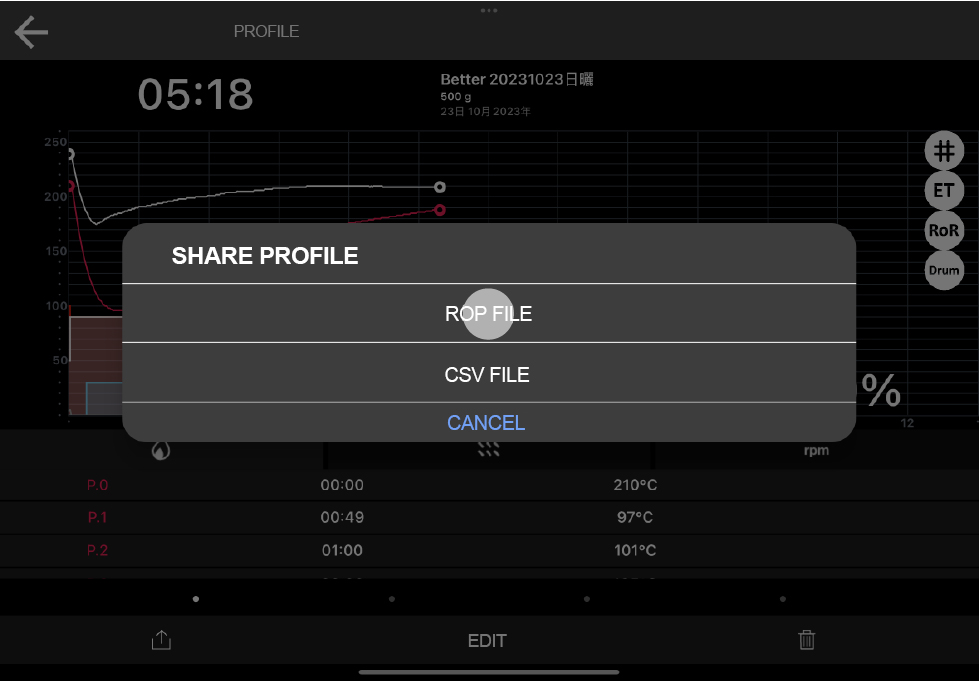
[A] STEP 1: On the sending device, select the roasting record you want to share and choose the ROP file format.
(Files from both History and Roasting Curve can be shared.)
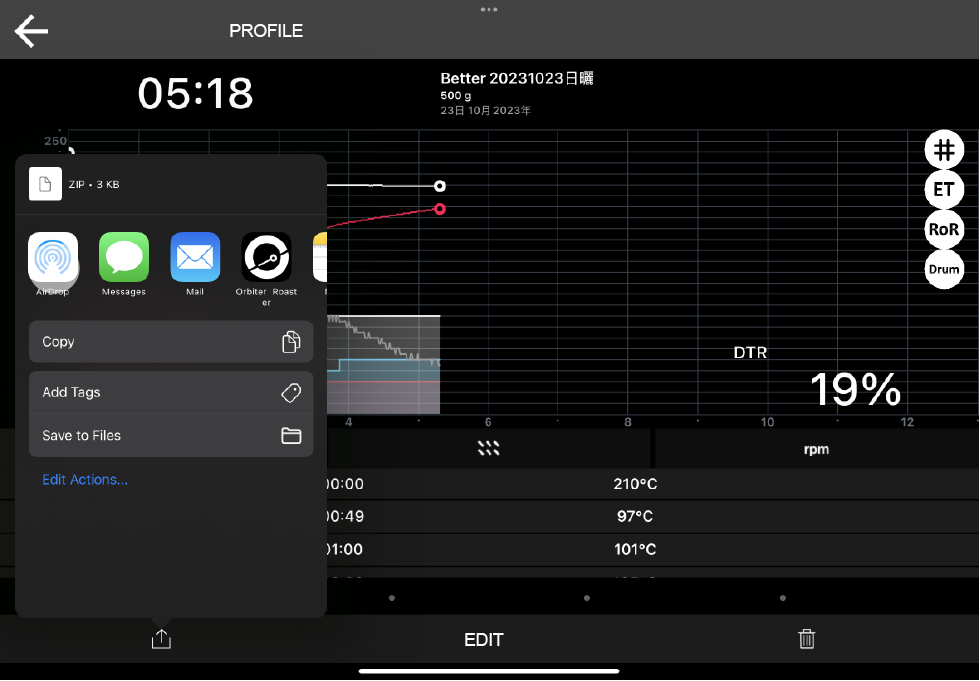
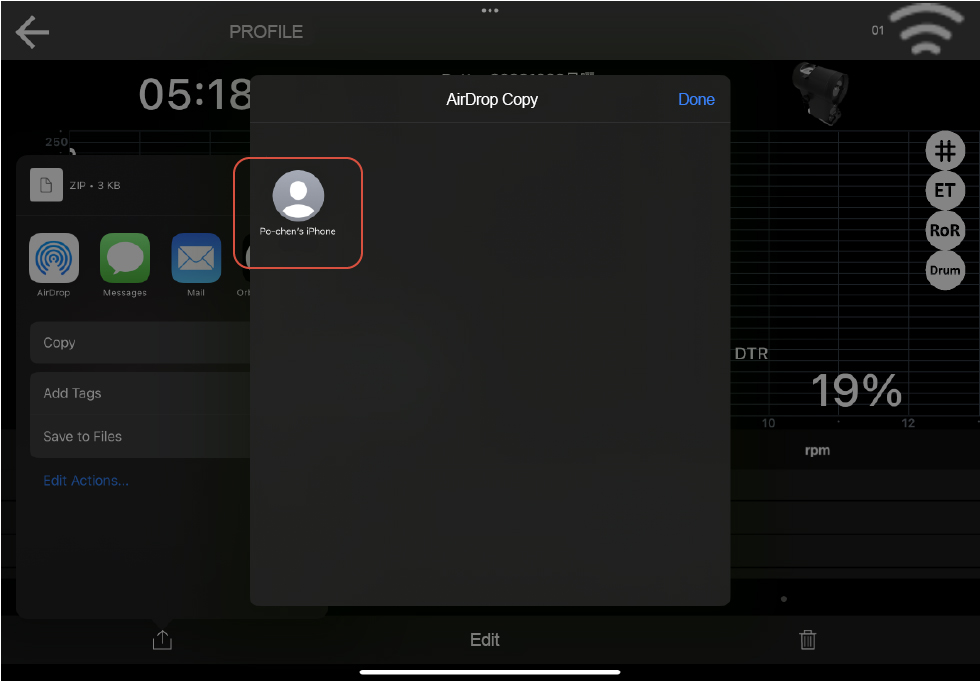
[A] STEP 2: Tap AirDrop and select the recipient.
(If no recipient is found, ensure that the receiving device has AirDrop enabled. See [B] STEP 1 for details.)
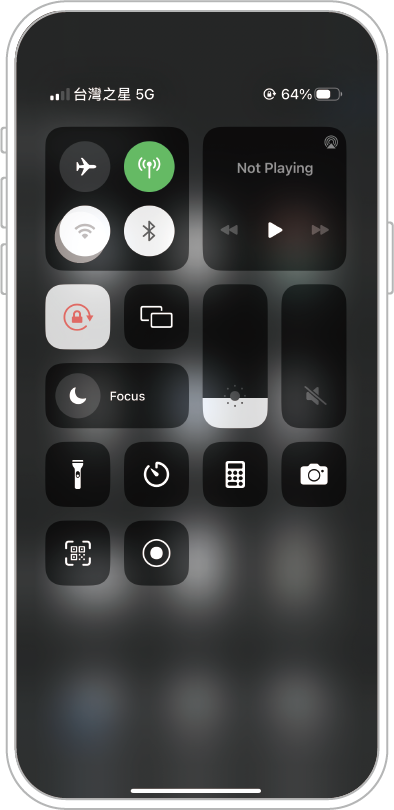
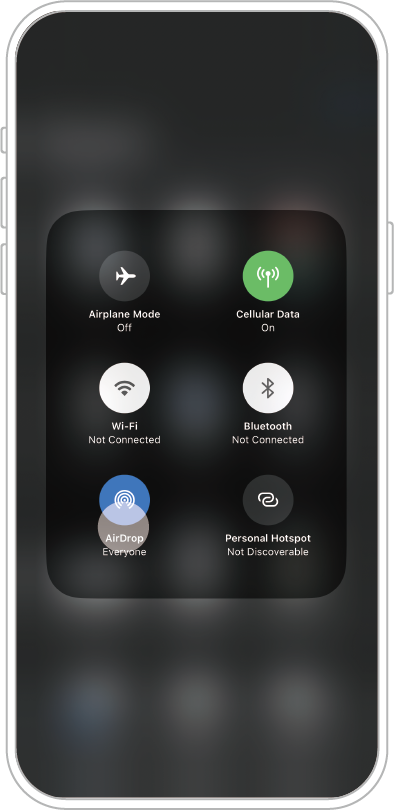
[B] STEP 1: On the receiving device, long-press to open the connection control page and enable AirDrop.
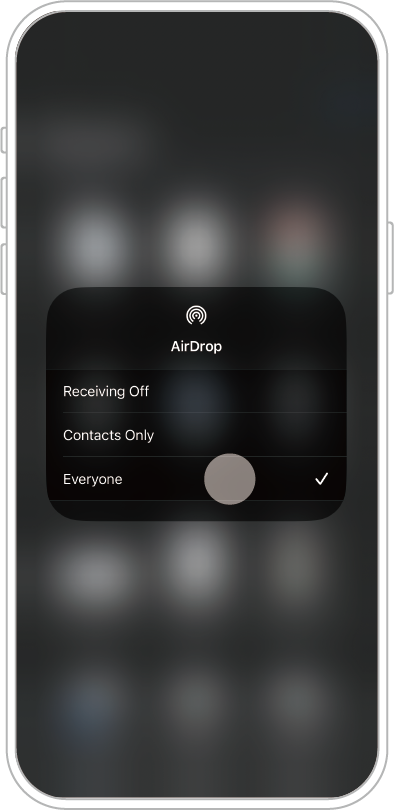
If [A] iPad and [B] iPhone are successfully paired, the data will be shared successfully.
Note: If the data does not automatically open in the APP or appear in the APP after receiving, you can manually load the file as follows:
STEP 3: On the receiving device, open the Files app to locate the shared file. Long-press the file icon, tap Share, and select Orbiter Roaster APP to open the shared file.
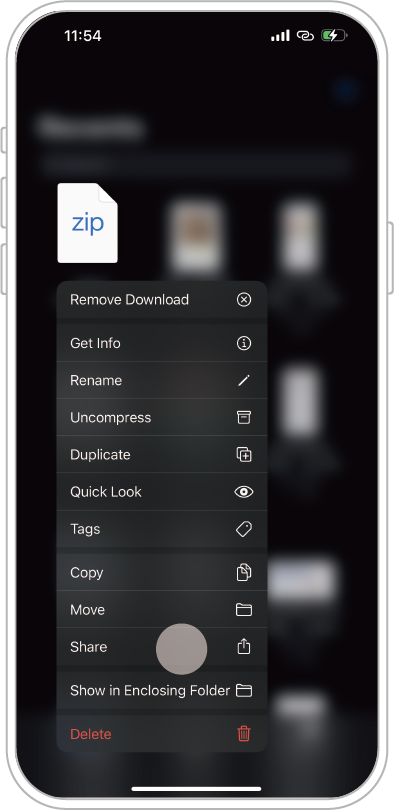
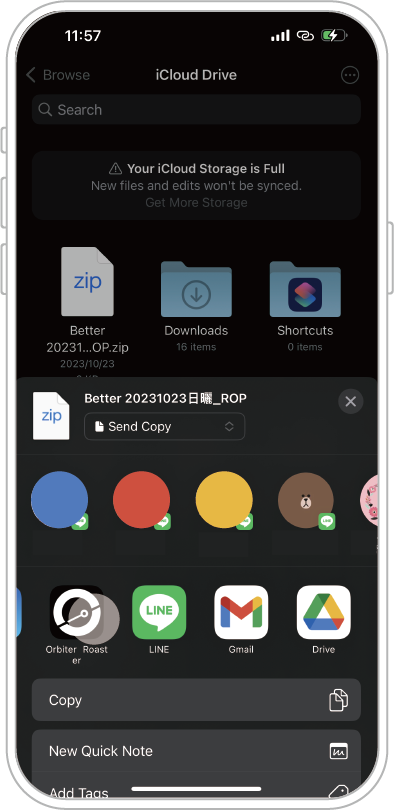
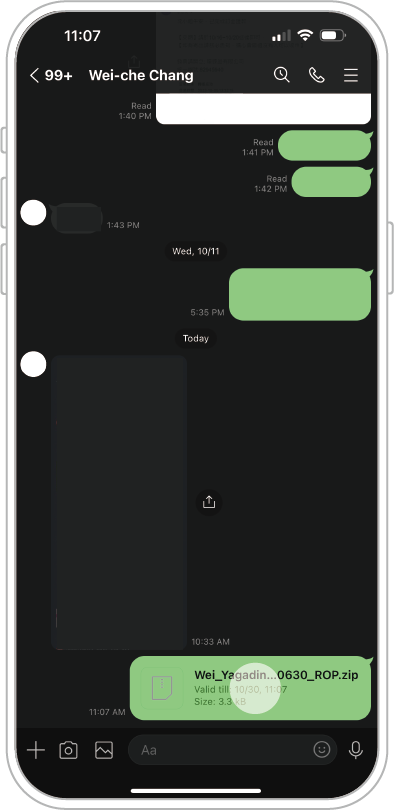
How to Download Roasting Curves via LINE [iOS]
STEP 1: Tap the compressed file to download it.
STEP 2: Tap the Share icon (bottom left) and select Orbiter Roaster APP to open the file.
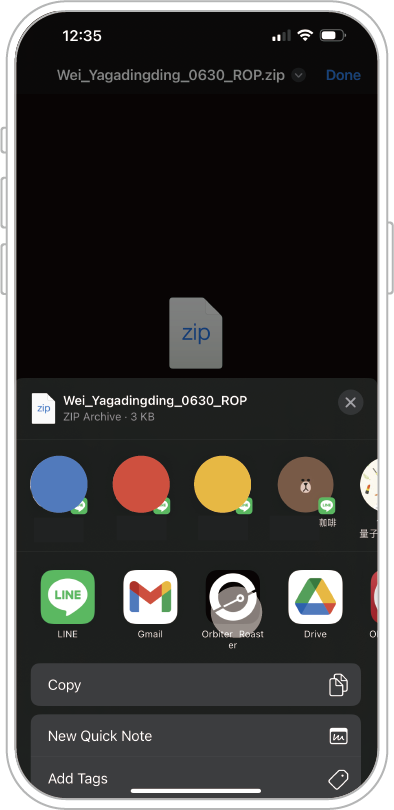
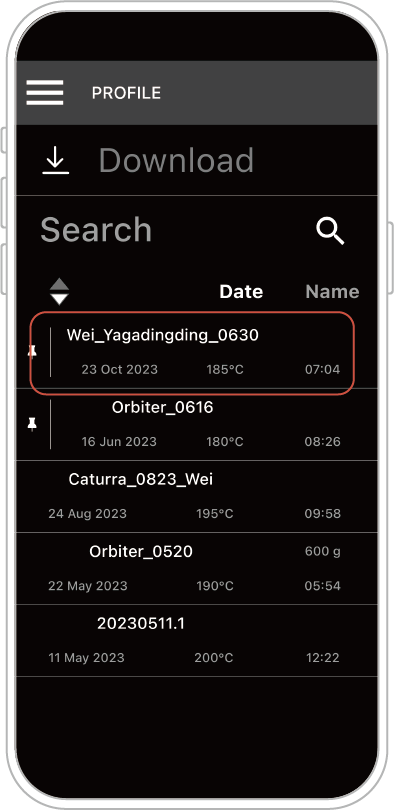
Once the download is complete, the file can be accessed in the Profile page.
How to Download Roasting Curves via LINE [Android]
STEP 1: Long-press the file and tap Share.
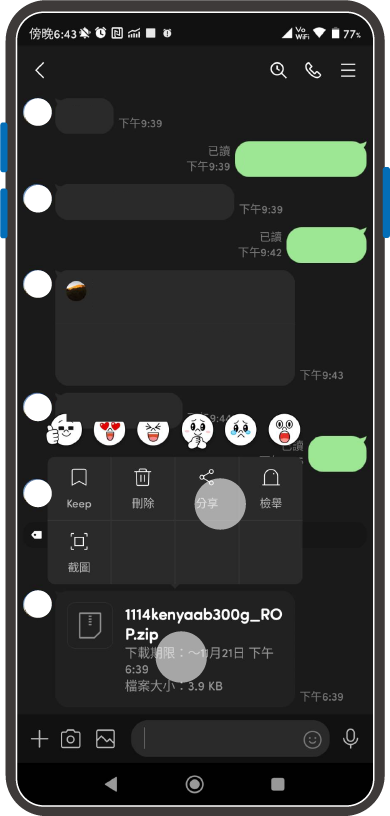
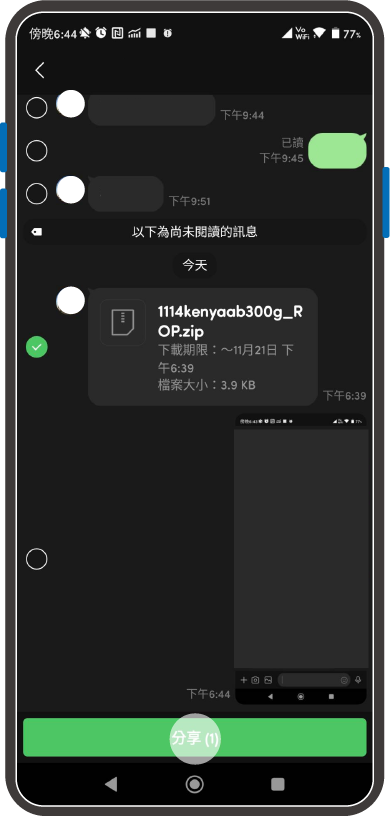
STEP 2: Tap Share to App (bottom left) and select Orbiter Roaster APP.
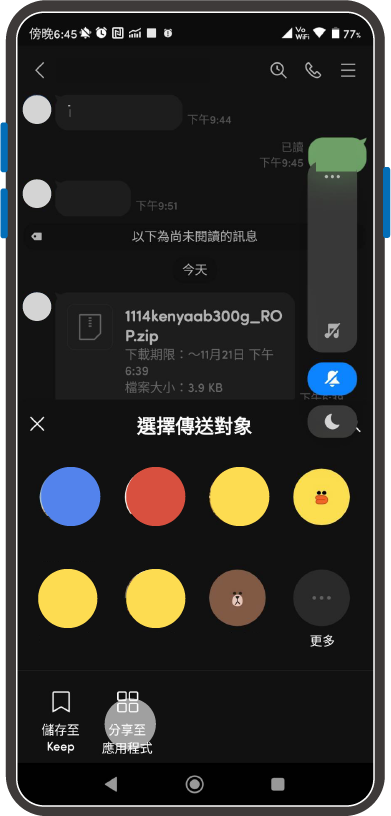
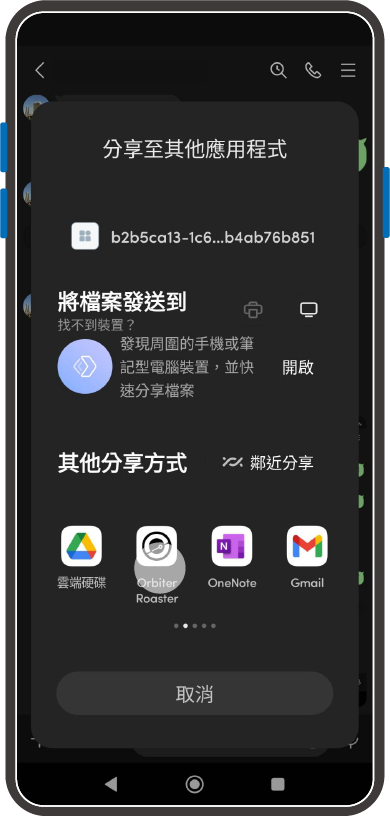
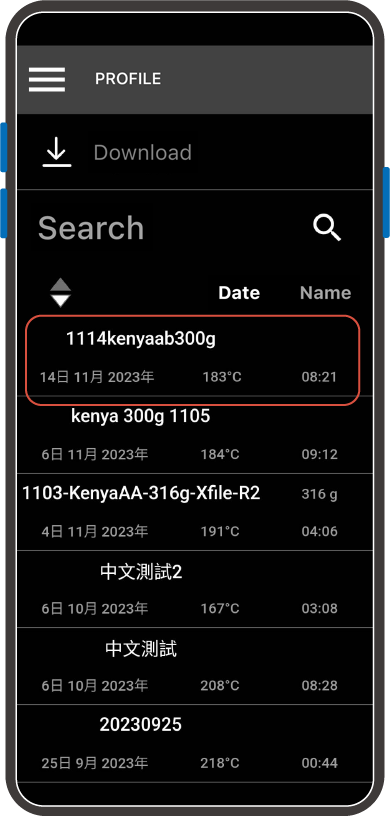
Once the download is complete, the file can be accessed in the Profile page.
How to Download Roasting Curves via E-mail [iOS]
STEP 1: Tap the compressed file to download it.
.png)
STEP 2: Tap the Share icon (bottom left) and select Orbiter Roaster APP to open the file.
.png)
Once the download is complete, the file can be accessed in the Profile page.
Orbiter Roaster APP – Download Options

iOS (App Store)

Android (Google Play)
Basic Introduction
Tap the Top-Left to Open the Operation Page
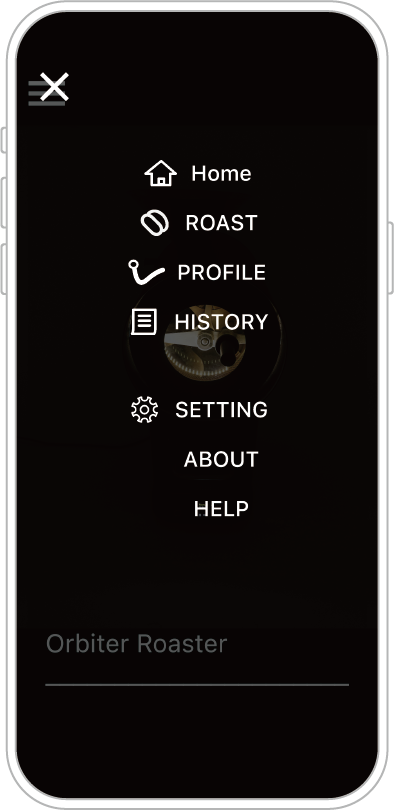
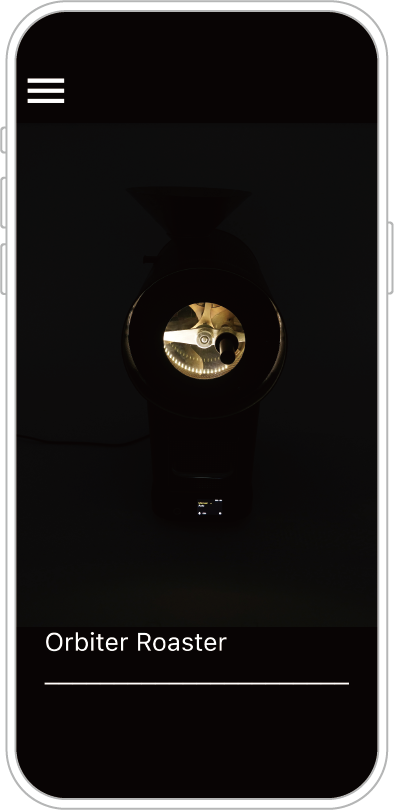
Home – Main Screen: Standby page. Some standby functions can be operated directly from this screen.
For detailed functions, please refer to the “Features & Design Updates” section
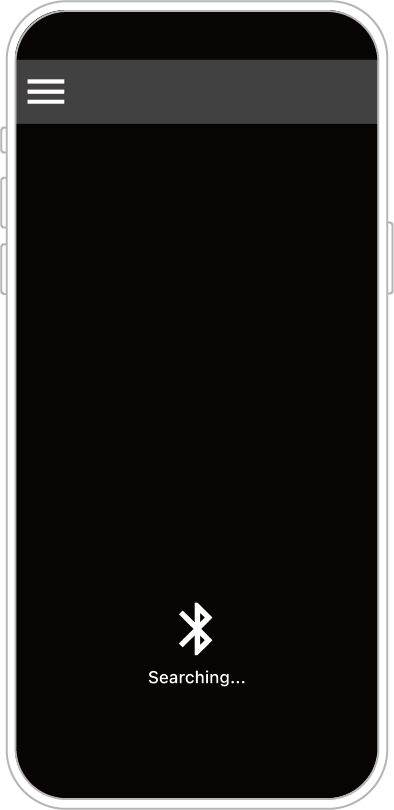
ROAST – Roasting Operation: Enter this page to pair with the roaster.
Once connected, you can monitor the process or perform roasting in Manual / Automatic mode.
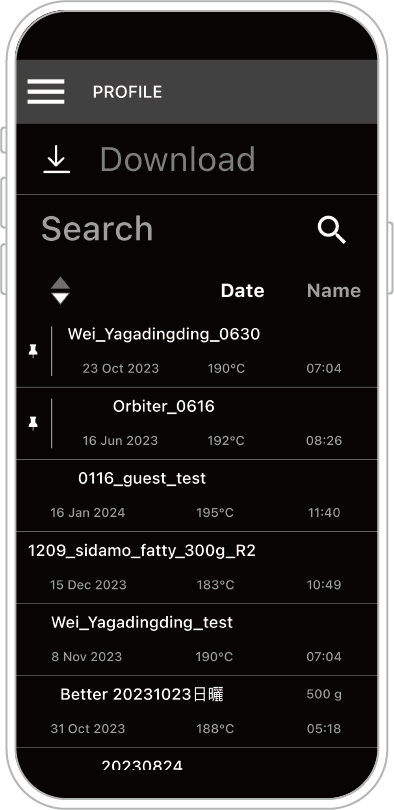
PROFILE – Roasting Curves: Review, edit, or modify saved roasting curves.
You can also add cupping information or select a curve for automatic roasting.
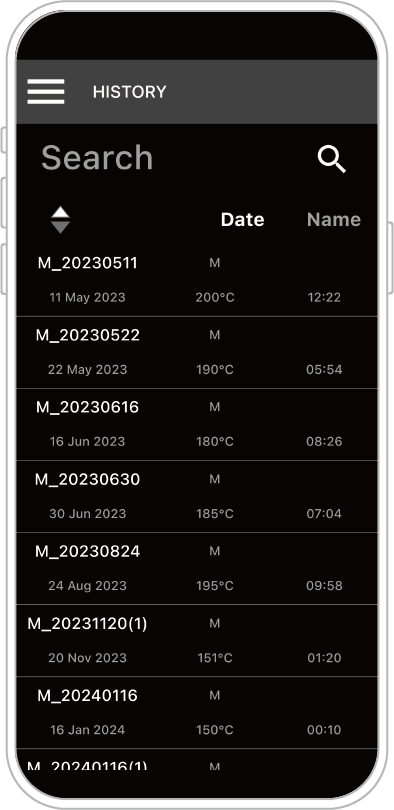
HISTORY – History Records: If roasting data has not been saved as a curve,
it will automatically remain in History. Data can be reviewed or converted to a curve later.
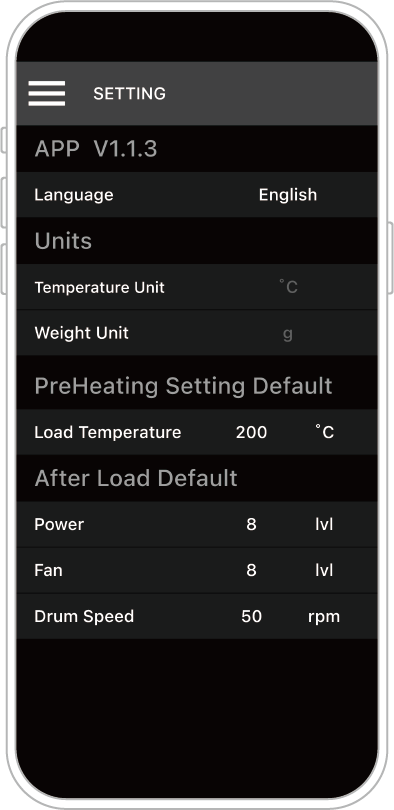
SETTING – Settings: Check the APP version, change language settings,
adjust bean drop temperature, and modify default roasting parameters after bean drop.
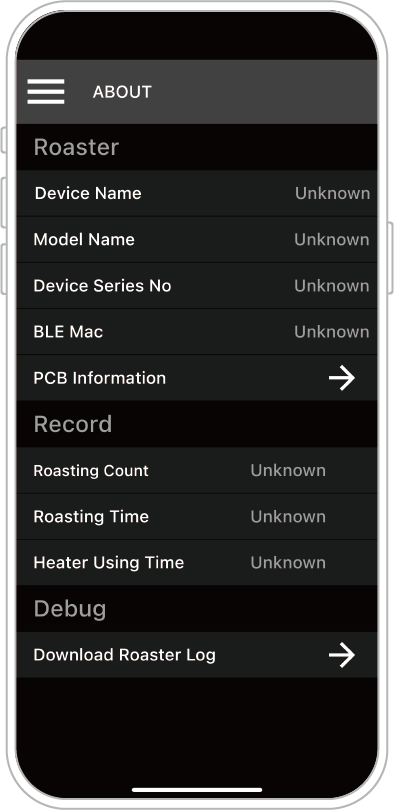
ABOUT – About: View machine-related information and usage records while connected.
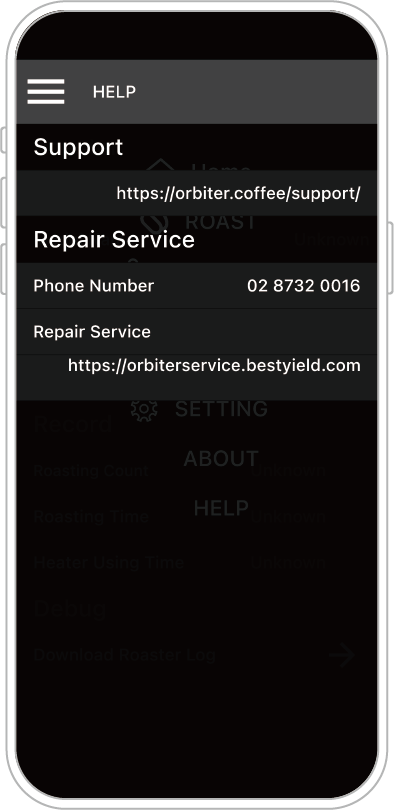
HELP – Help: Access the repair system website from this page.
Home – Main Screen: Standby page. Some standby functions can be operated directly from this screen.
For detailed functions, please refer to the “Features & Design Updates” section
ROAST – Roasting Operation: Enter this page to pair with the roaster.
Once connected, you can monitor the process or perform roasting in Manual / Automatic mode.
PROFILE – Roasting Curves: Review, edit, or modify saved roasting curves.
You can also add cupping information or select a curve for automatic roasting.
HISTORY – History Records: If roasting data has not been saved as a curve,
it will automatically remain in History. Data can be reviewed or converted to a curve later.
SETTING – Settings: Check the APP version, change language settings,
adjust bean drop temperature, and modify default roasting parameters after bean drop.
ABOUT – About: View machine-related information and usage records while connected.
HELP – Help: Access the repair system website from this page.
Important Notice – Cleaning Warning
[ Silver Skin Container and Waste Tray Cleaning Warning ]
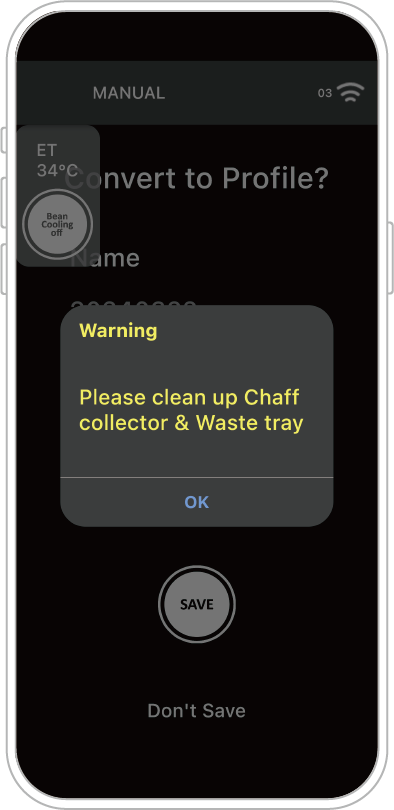
After roasting, if a cleaning prompt appears, please empty the silver skin container and the waste tray of residual skins.
Excessive accumulation of waste may cause airflow blockage or even fire. Regular cleaning of the equipment is strongly recommended.
Since the amount of waste generated depends on the type of beans and their processing method,
if a large amount of silver skin is observed, cleaning frequency should be increased.
Reminder: Do not perform cleaning during the roasting process to avoid burns from high temperatures.
During the bean cooling process, do not remove the waste tray to prevent ash from entering the bean container.
After roasting, if a cleaning prompt appears, please empty the silver skin container and the waste tray of residual skins.
Excessive accumulation of waste may cause airflow blockage or even fire. Regular cleaning of the equipment is strongly recommended.
Since the amount of waste generated depends on the type of beans and their processing method,
if a large amount of silver skin is observed, cleaning frequency should be increased.
Reminder: Do not perform cleaning during the roasting process to avoid burns from high temperatures.
During the bean cooling process, do not remove the waste tray to prevent ash from entering the bean container.
Notice – Naming Conventions for Roasting Curve ZIP Files
[ Roasting Curve Naming Guidelines ]
Please check the original file name to ensure that “prohibited special characters” are not used, such as:
\ / : * ? " > < |
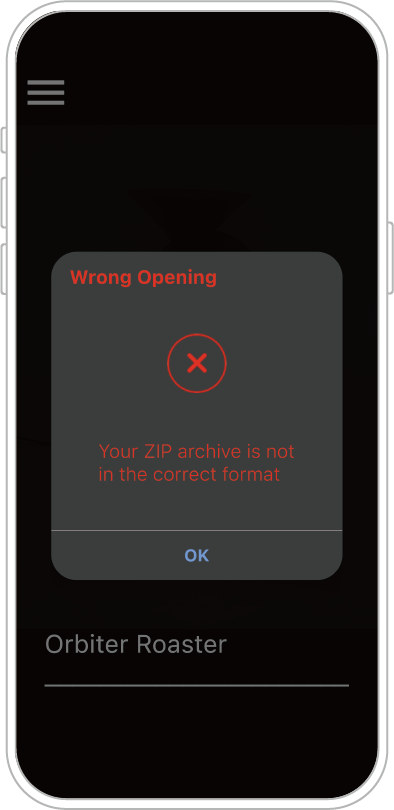
If the file name contains any prohibited special characters, the file may not open correctly when shared with others and may display an error.
How to Download OB-1 Machine History Records via the APP
“On-Device Roasting” automatically saves roasting curves to HISTORY (temporary storage).
To view previously saved roasting data from the machine, use a smartphone or tablet with the ORBITER ROASTER APP installed.
Reminder: Ensure that the APP is paired with the machine via Bluetooth before proceeding.
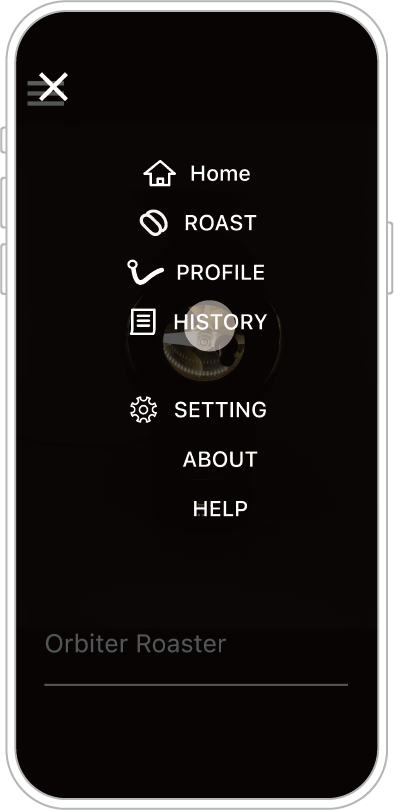
STEP 1: Tap HISTORY.
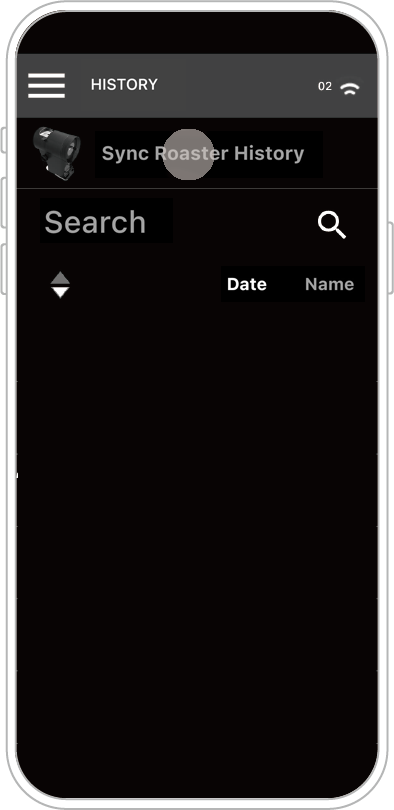
STEP 2: Tap Sync Roaster History at the top of the screen.
(If it does not appear, check whether the Bluetooth connection is successful.)
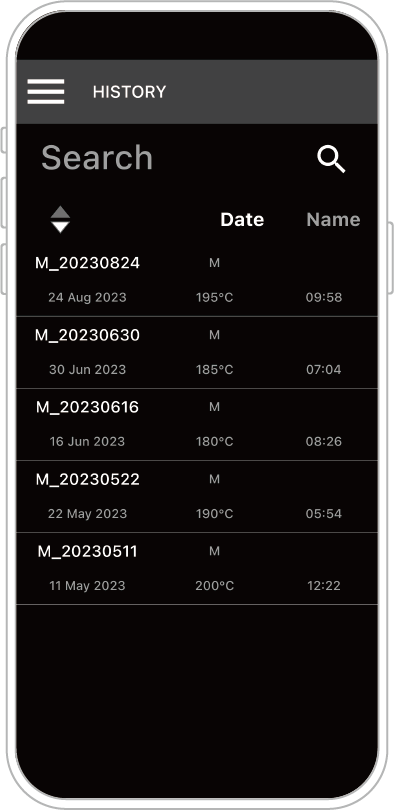
Once successfully loaded, the screen will display the machine’s temporary data.
You can tap each roasting record to view its details.