
FAQ



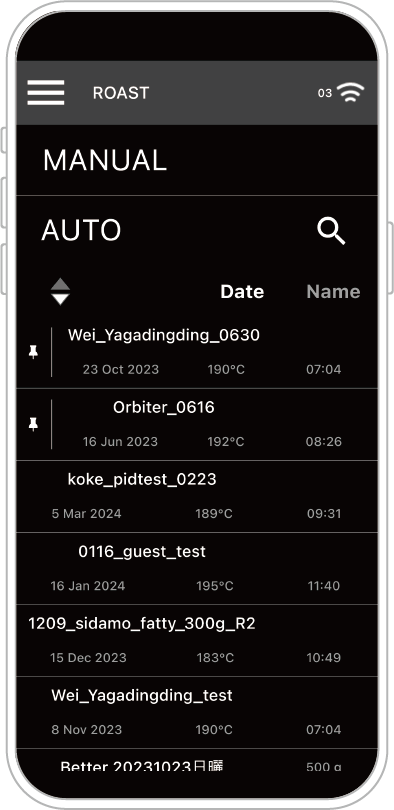
How to Convert APP History Records into Roasting Curves


History (History) allows users to temporarily store roasting curve data and notes.
You can decide whether to delete or convert the data into a Roasting Curve based on the flavor profile of the roast.
Roasting Curves (Profile) are commonly used curves that can be edited and adjusted by the user.
Reminder: Only data converted to Roasting Curves can later be used for automatic roasting with the same curve (Fully Automatic Roasting).
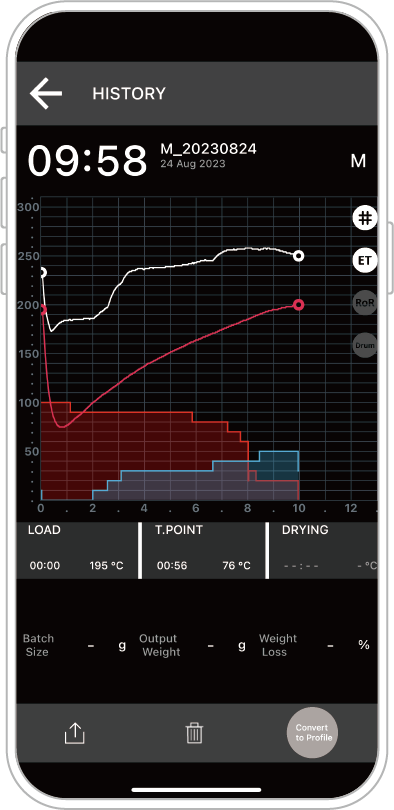
STEP 1: Tap HISTORY.
STEP 2: Select the record you want to convert.
STEP 3: Tap Convert to Roasting Curve at the bottom right.
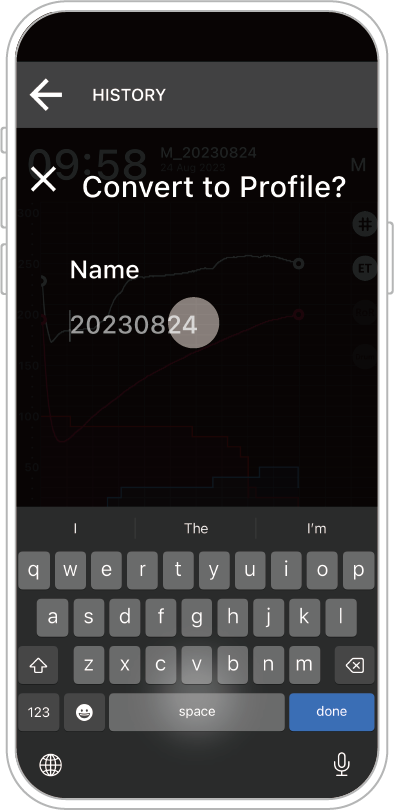
STEP 4: Enter a name for the curve.
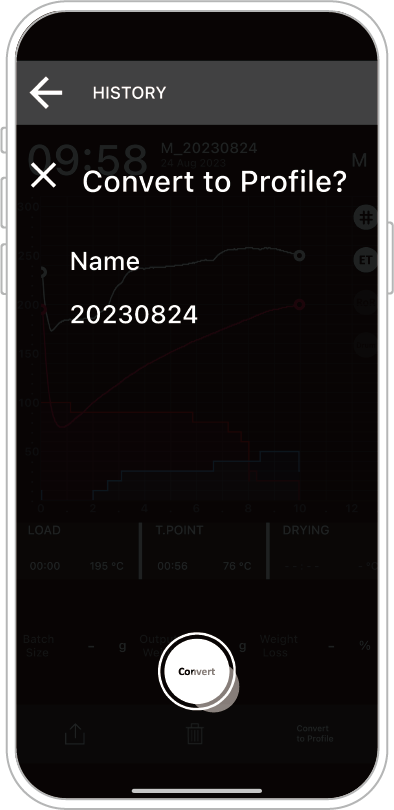
STEP 5: Confirm the conversion.
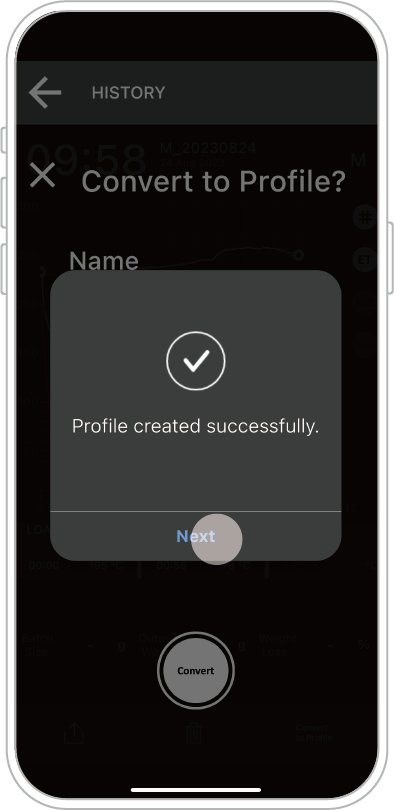
After Conversion:
The converted data will appear in the Profile page as a new Roasting Curve.
How to Perform Copy Roasting / Continuous Roasting via the APP
Reminder: Ensure that the APP is paired with the machine via Bluetooth and that the roasting curve data is opened in PROFILE.
The connection icon at the top right (e.g., “03” in this example) indicates that the machine is still connected.
If your device does not have any Roasting Curve data, please refer to the APP roasting video or the section “Converting APP History Records to Roasting Curves.”
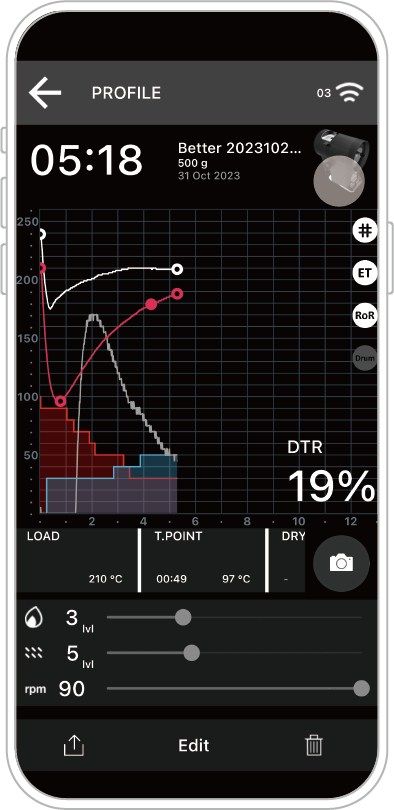
STEP 1: Tap the Copy Roasting Icon (roaster icon).
The machine will automatically perform the copy roasting for the selected curve.
How to Skip the Automatic Preheating Process via the APP
Description: The machine's Automatic Preheating temperature range is set between 150℃–230℃,
based on the recommended preheating range for this model. Temperatures below or above this range are excluded due to potential issues such as poor roasting efficiency, overflow, or inconsistent flavor development.
For roasting flexibility, operators can still perform manual preheating to control the bean loading timing, as described below.
At the Preheating page, tap SKIP at the bottom right to perform manual preheating (control the bean loading time and temperature manually).
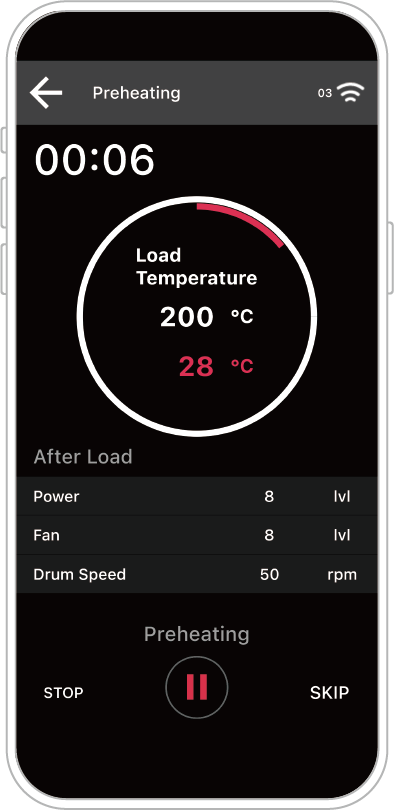
STEP 1: Tap SKIP to enter the Preheating control page.
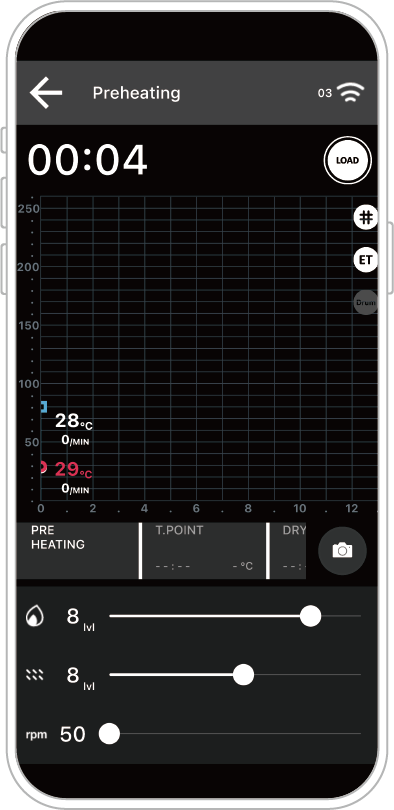
The machine will operate based on the parameters set by the operator (heat power, airflow damper, drum speed).
Operators can decide the bean loading time according to the displayed data (temperature and Rate of Rise – ROR).
STEP 2: When ready to load beans, tap the white circular LOAD icon at the top right.
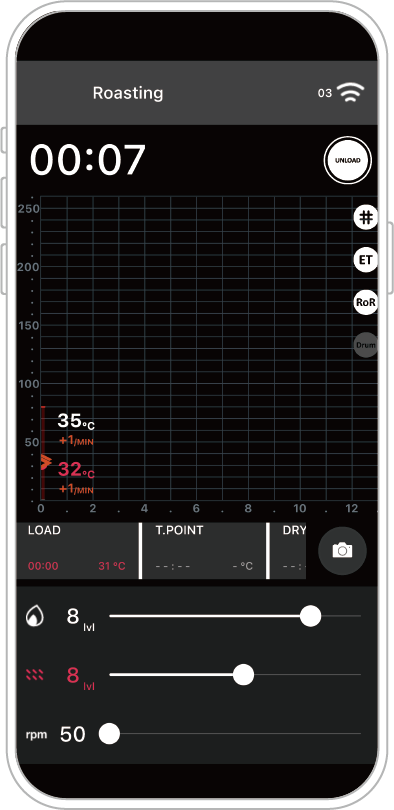
The roasting process will begin, and the ROASTING indicator will appear at the top left.
In the middle of the screen, the Event section displays the time and temperature at LOAD (as shown in the example, red text information).
How to Upload APP Roasting Curves to the OB-1 Machine
Reminder: Ensure that the APP is paired with the machine via Bluetooth.
(If successfully connected, the connection icon will appear at the top right.)
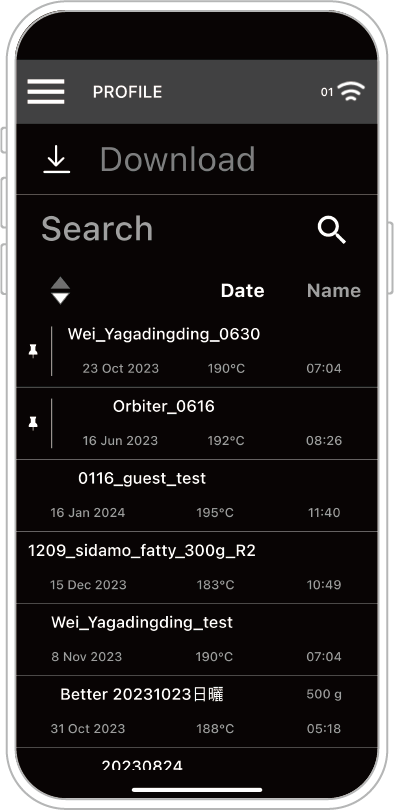
STEP 1: In PROFILE, select the roasting curve you want to upload.
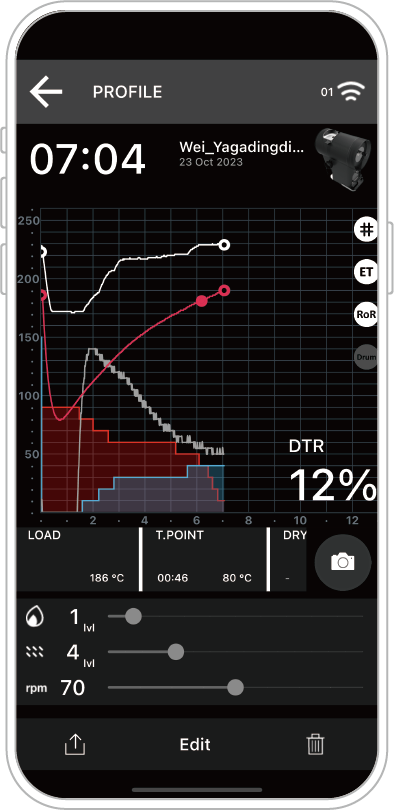
STEP 2: Tap the Upload icon at the bottom left (to the left of Edit).
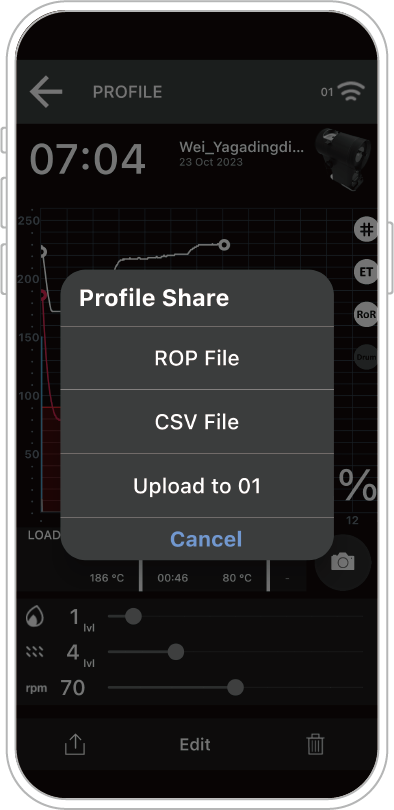
STEP 3: Choose Upload to Machine.
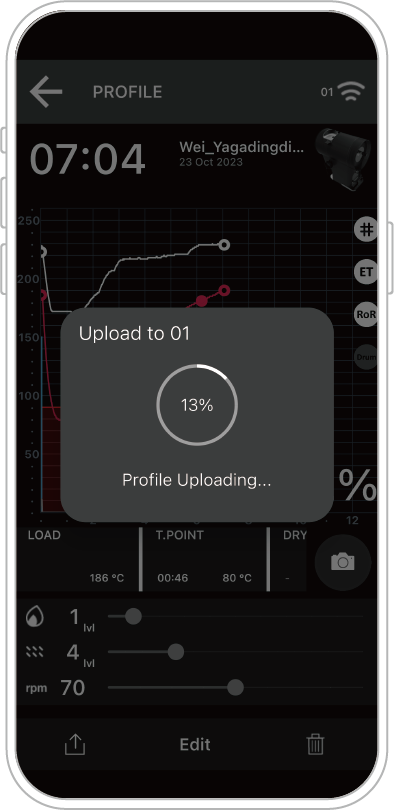
The selected curve will be uploaded to the OB-1 Pro machine.
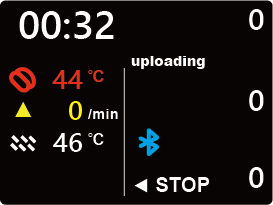
During the process, the machine screen will display Uploading.
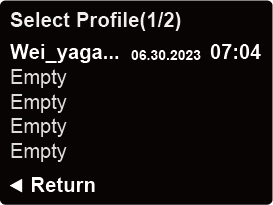
Once completed, the uploaded curve can be found under AUTO on the machine.
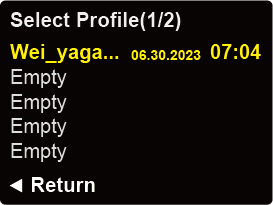
Once completed, the uploaded curve can be found under AUTO on the machine.
Select the curve (it will turn yellow) and press down to start Automatic Roasting.
Note: With Machine Automatic Roasting (AUTO), the phone’s Bluetooth connection is not required for fully automatic operation.
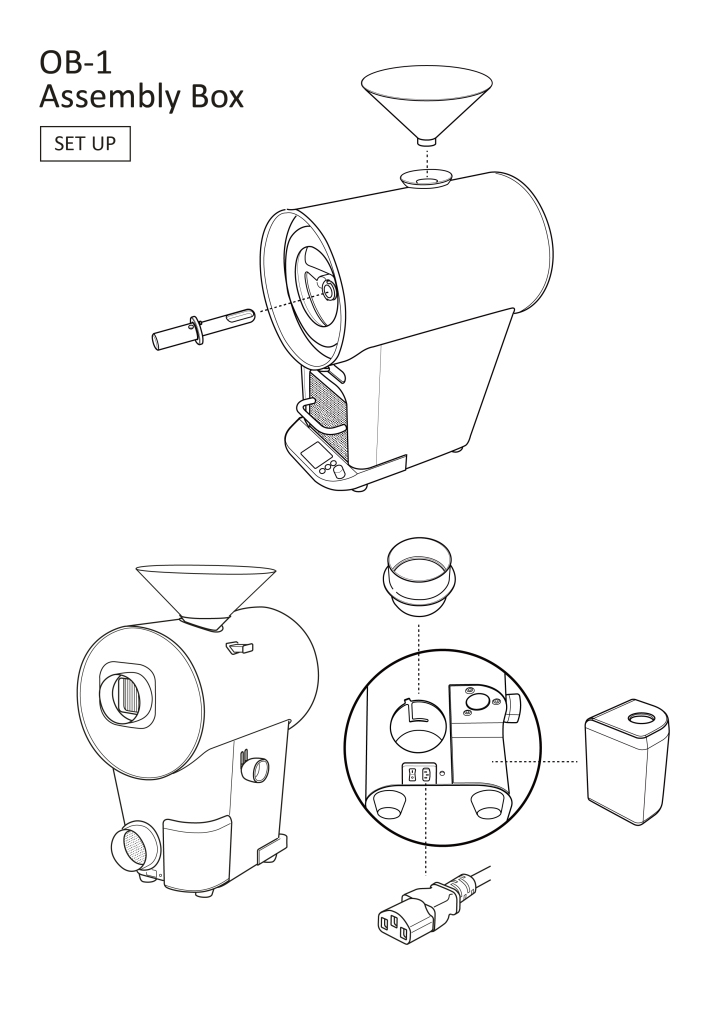
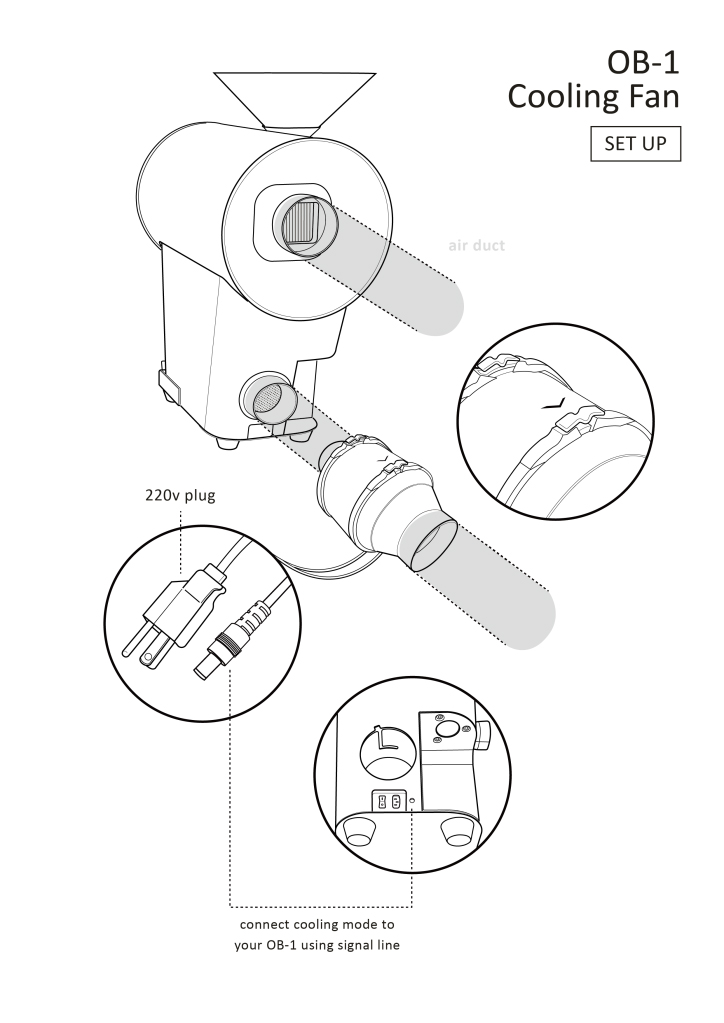
OB-1 Pro Unit – Installation Setup
OB-1 Pro Unit – Accessory Box Setup and External Pipe Installation
Orbiter Roaster App Download

iOS (App Store)

Android (Google Play)
OB-1 Pro Main Unit – Baking Operation Interface Select 93 more words to run Humanizer.
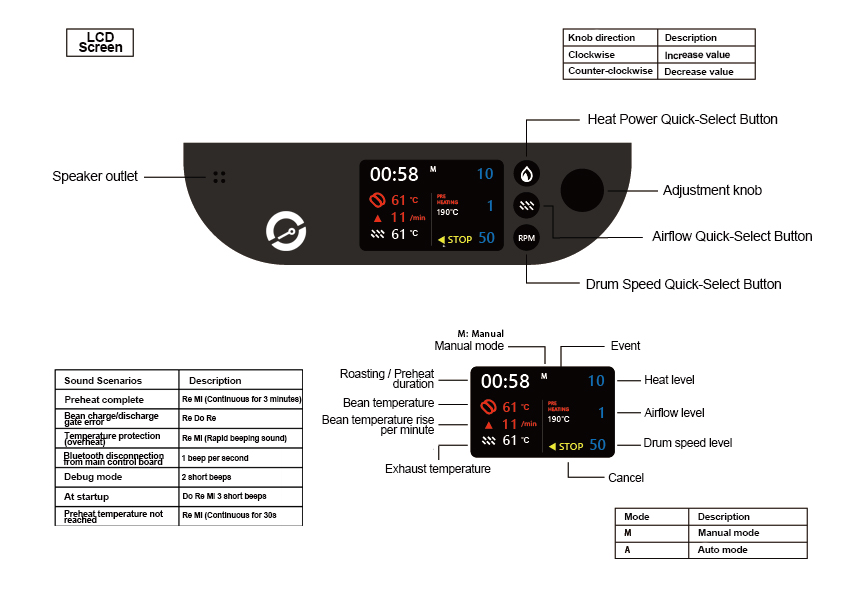
Manual Mode
Manual mode is suitable for users who want to develop roasting profiles for new green beans. This mode can be operated either from the main unit or via the APP. Users can adjust three variables: heat power, airflow damper, and drum speed. At the first and second crack, the bean release lever can be pulled, and the corresponding temperature will be recorded as event points on the roasting curve. Users can choose whether to save the data according to their preference.
Automatic Mode
Fully automatic mode includes bean loading/unloading, roasting, and cooling systems, and can be controlled from both the main unit and the APP. In this mode, users can select a roasting curve based on the corresponding “bean type / weight.” Roasting data can be reviewed from either the device memory or the machine itself.
Temperature Protection
[ Temperature Protection Settings ]
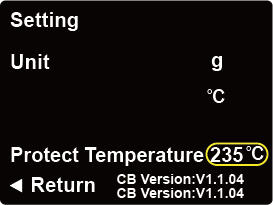
Description: The temperature protection mechanism is triggered when the machine overheats, forcing the beans to be released for cooling.
For roasting flexibility, the high-temperature threshold can be adjusted.
*Note before adjusting temperature: The higher the setting, the greater the safety risk. Please evaluate your needs carefully.
STEP 1: From the main screen of the machine, enter the “Settings” page.
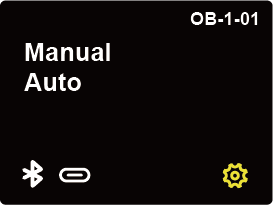
STEP 2: Turn the knob to the temperature position (temperature display highlighted with a yellow border) to adjust the maximum temperature of the protection mechanism.
Connection Successful
[ Connection Successful Page Status ]
Description: Once Bluetooth connection is established and the APP gains roasting control, the screen will switch to this page.
*The time displayed in the upper left corner indicates the duration of the connection. If the device exits to a page outside of the APP, the machine will stop timing.
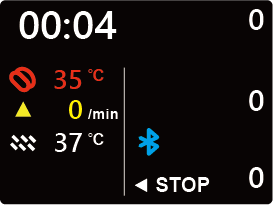
The corresponding APP screen for the image above is:
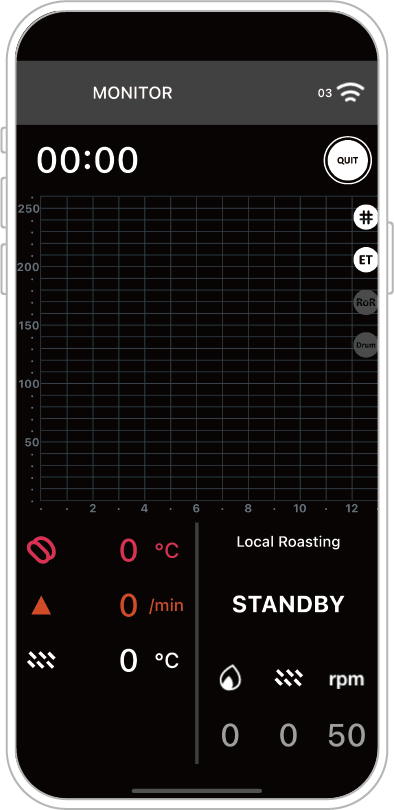
Description: Once Bluetooth connection is successful and the APP gains roasting control, the device will automatically switch to this page.
If the APP does not obtain roasting control, the screen will remain in “Monitoring” mode.
Bluetooth Connection / Manual Roasting
Manual Mode
Manual mode is ideal for users who want to experiment with and develop roasting profiles for new green beans. This mode can be controlled either from the machine itself or via the app. Users can adjust three variables: **heat level, damper position, and drum speed**. During the first and second crack, users can manually trigger the bean drop. The temperature at that moment will be recorded as an event point on the roasting curve. Users can choose whether or not to save the data for future reference.Automatic Mode
The fully automatic mode includes integrated control of **bean loading, roasting, and cooling** systems. It can also be operated from either the machine or the app. In this mode, users can select a preset roasting profile based on **bean type and weight**. Roasting data can be reviewed from either the device memory or the machine's internal profile records.
Roasting Mechanism
The OB-1 Pro utilizes a semi-hot air roasting principle and is a professional drum roaster designed to rival commercial specifications.
Utilizing a combination of convection and contact heat, it roasts beans with stable heat supply, robust heat retention, and strong convection. This effectively roasts the beans thoroughly, resulting in a mellow, rich, and long-lasting flavor. The semi-hot air roasting characteristics, combined with operational controllability, provide a wide range of flavor adjustments.
Utilizing a combination of convection and contact heat, it roasts beans with stable heat supply, robust heat retention, and strong convection. This effectively roasts the beans thoroughly, resulting in a mellow, rich, and long-lasting flavor. The semi-hot air roasting characteristics, combined with operational controllability, provide a wide range of flavor adjustments.