
FAQ



How to Share Roasting Curves via LINE [iOS]


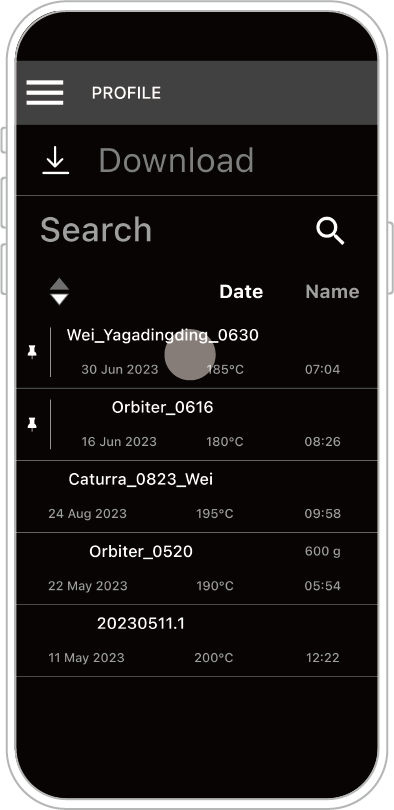
STEP 1: Select the roasting record you want to share.
(Files from both History and Roasting Curve can be shared.)
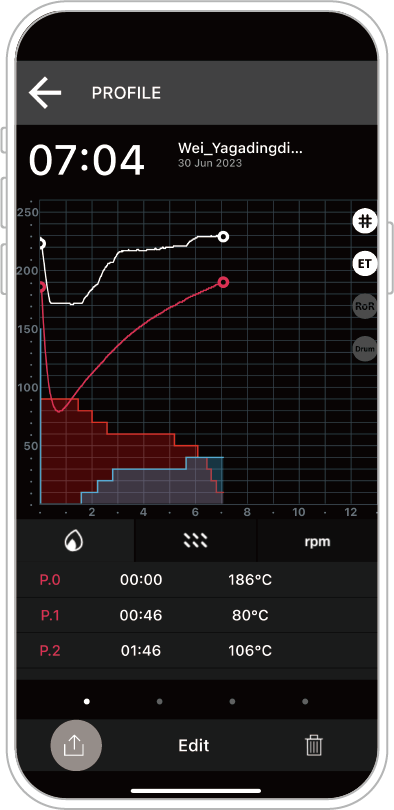
STEP 2: Tap the Share icon (bottom left) and select the ROP file format.
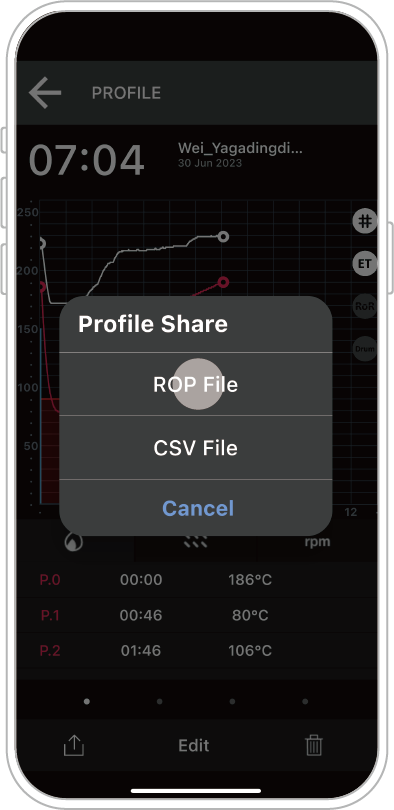
STEP 3: Choose the LINE app, select the friend or group you want to share with, and tap Share.
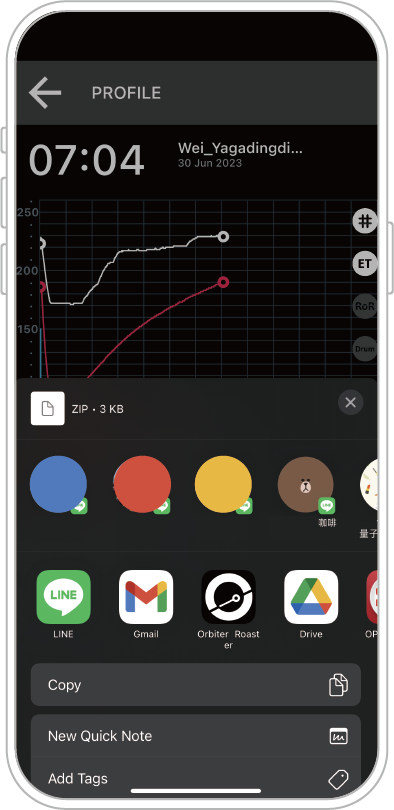
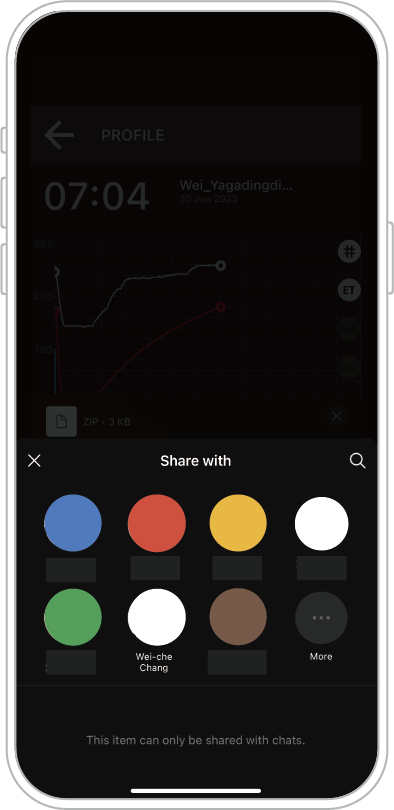
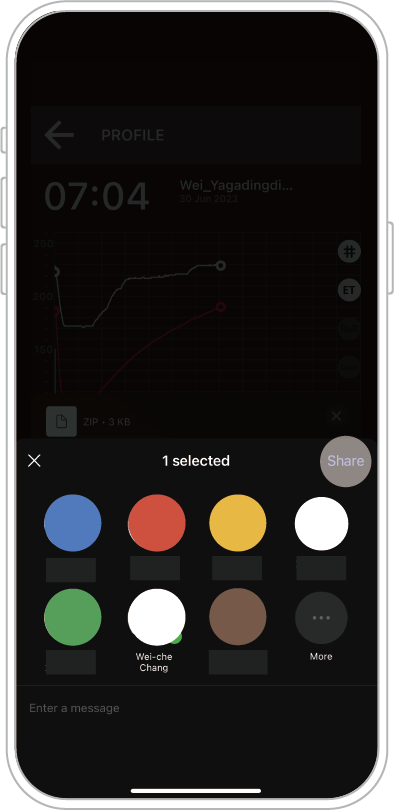
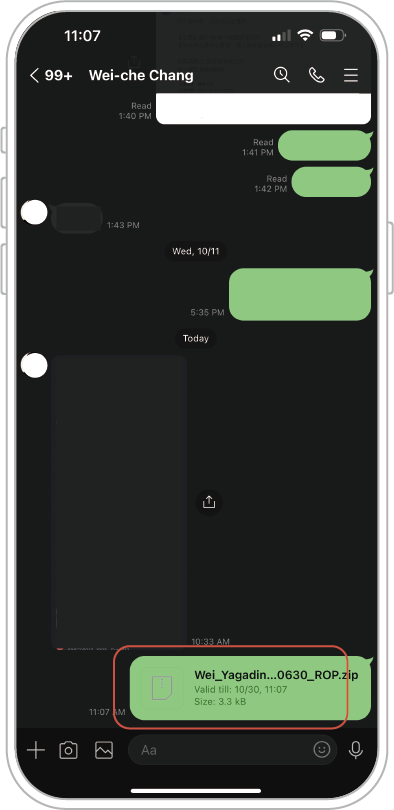
Once successfully shared, the compressed file will be available for download in the LINE chat.
For instructions on receiving the file, please refer to the “Downloading Roasting Curves” section.
How to Share Roasting Curves via E-mail [iOS]
STEP 1: Select the roasting record you want to share.
(Files from both History and Roasting Curve can be shared.)
STEP 2: Tap the Share icon (bottom left) and select the ROP file format.
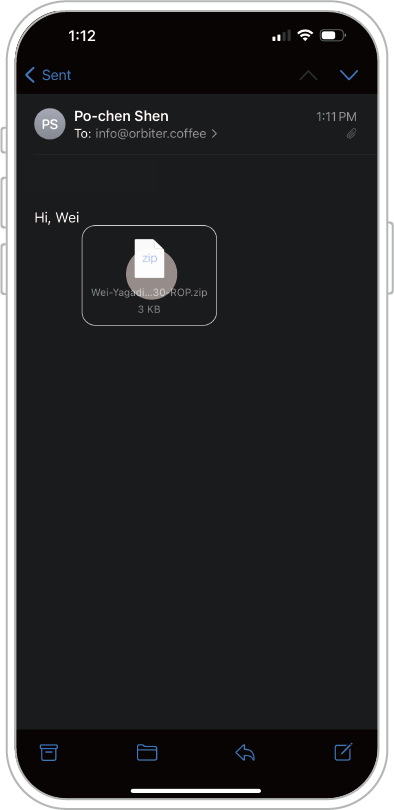
STEP 3: Choose the Mail app to send the file via e-mail.
How to Share Roasting Curves via AirDrop [iOS]
Reminder: This operation is for sharing APP roasting curves between devices.
The example below uses [A] iPad and [B] iPhone:
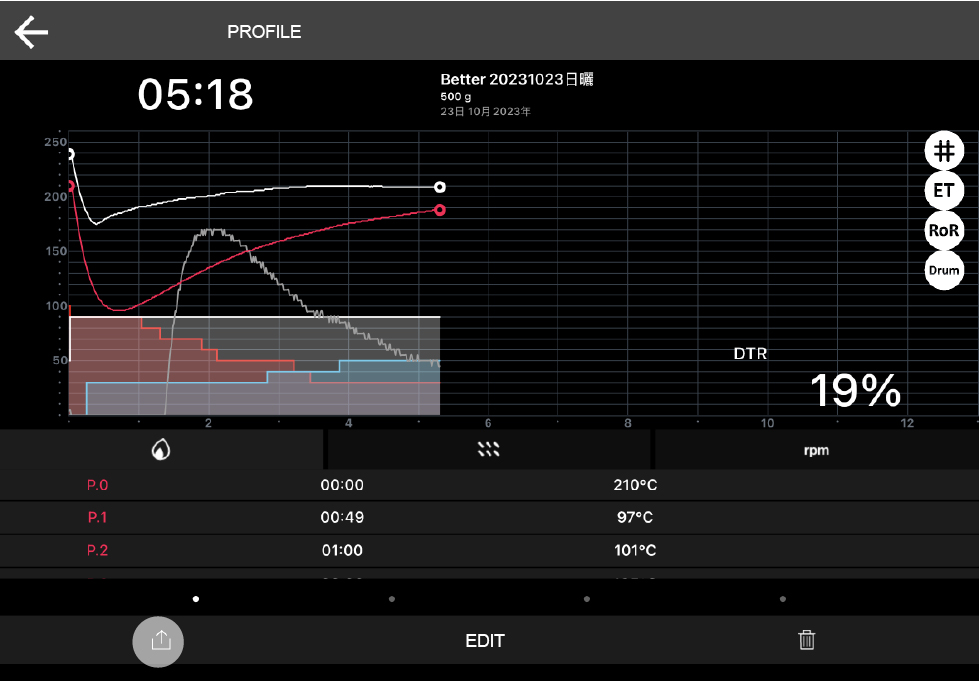
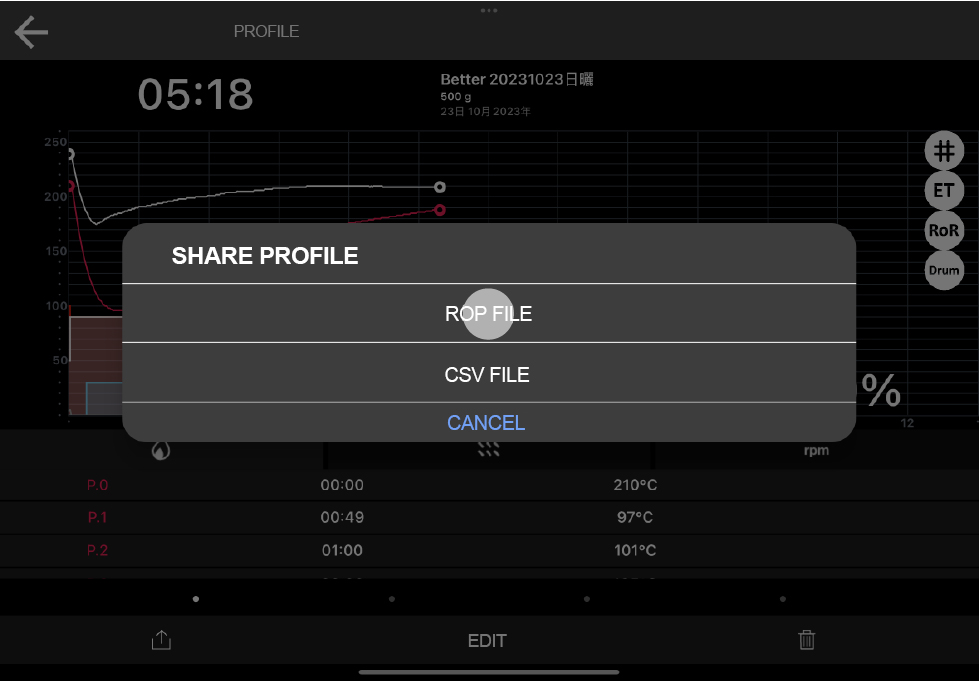
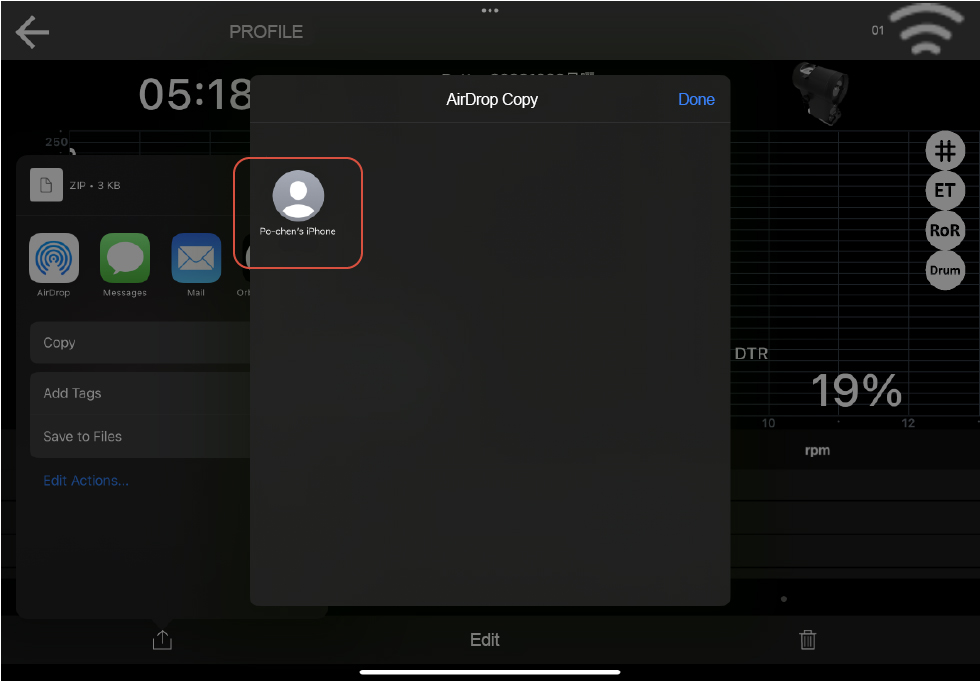
[A] STEP 1: On the sending device, select the roasting record you want to share and choose the ROP file format.
(Files from both History and Roasting Curve can be shared.)
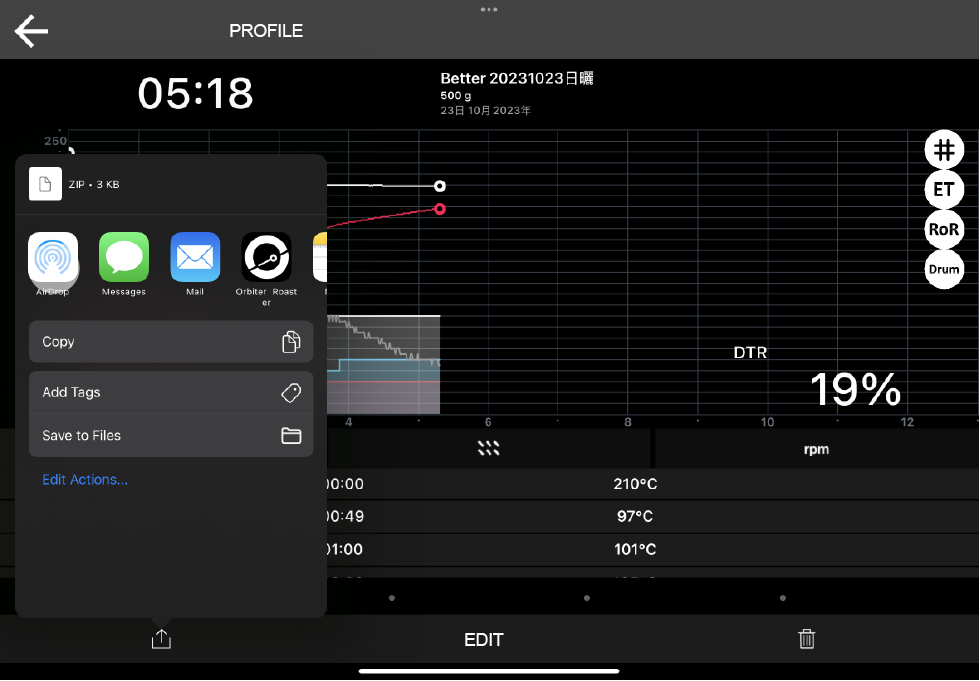
[A] STEP 2: Tap AirDrop and select the recipient.
(If no recipient is found, ensure that the receiving device has AirDrop enabled. See [B] STEP 1 for details.)
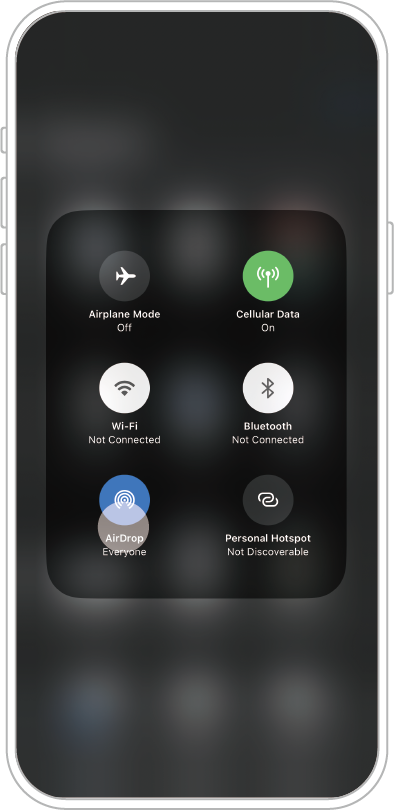
[B] STEP 1: On the receiving device, long-press to open the connection control page and enable AirDrop.

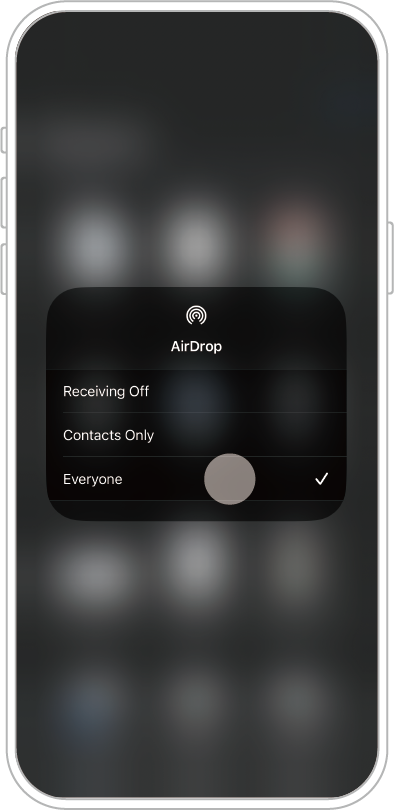
If [A] iPad and [B] iPhone are successfully paired, the data will be shared successfully.
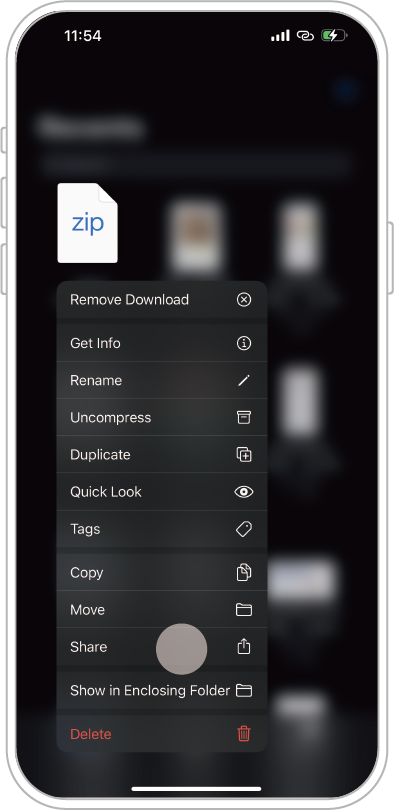
Note: If the data does not automatically open in the APP or appear in the APP after receiving, you can manually load the file as follows:
STEP 3: On the receiving device, open the Files app to locate the shared file. Long-press the file icon, tap Share, and select Orbiter Roaster APP to open the shared file.
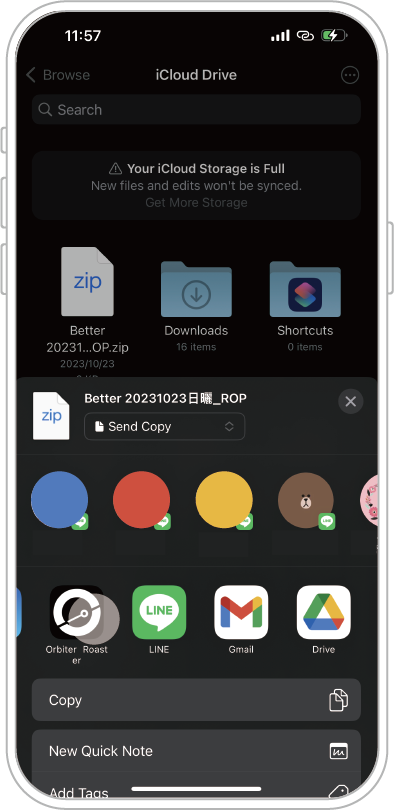
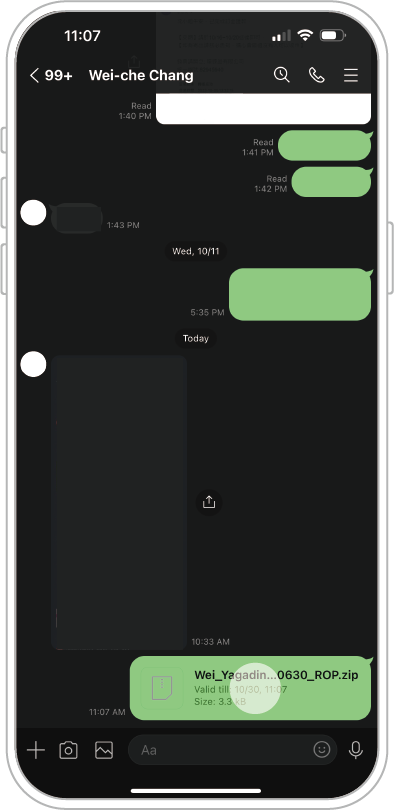
How to Download Roasting Curves via LINE [iOS]
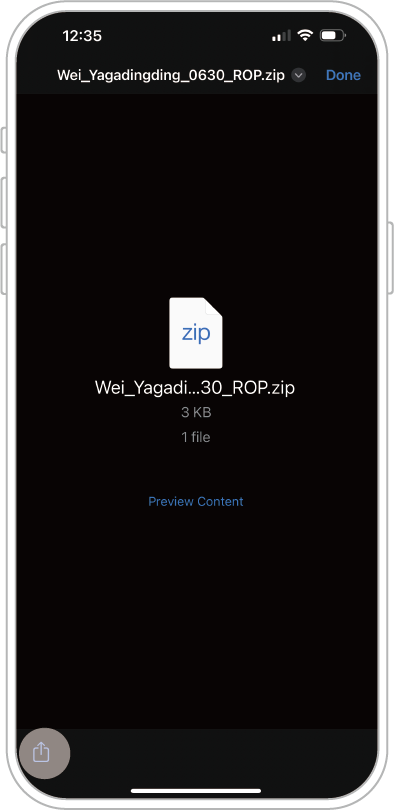
STEP 1: Tap the compressed file to download it.
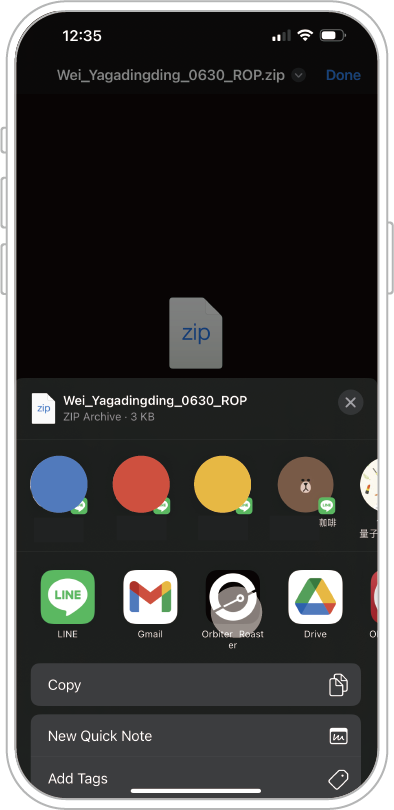
STEP 2: Tap the Share icon (bottom left) and select Orbiter Roaster APP to open the file.
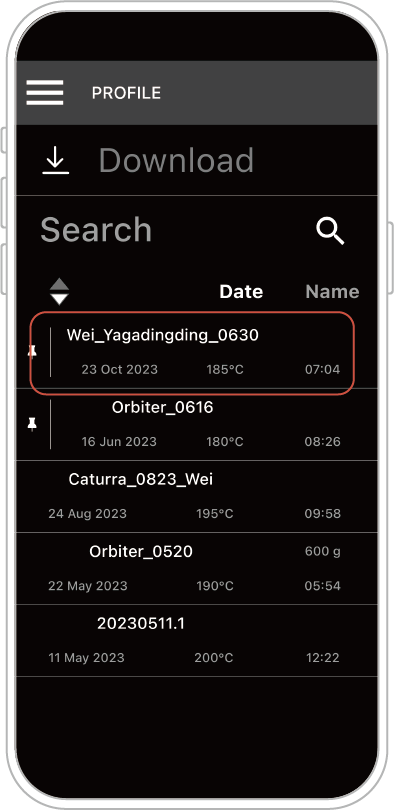
Once the download is complete, the file can be accessed in the Profile page.
How to Download Roasting Curves via LINE [Android]
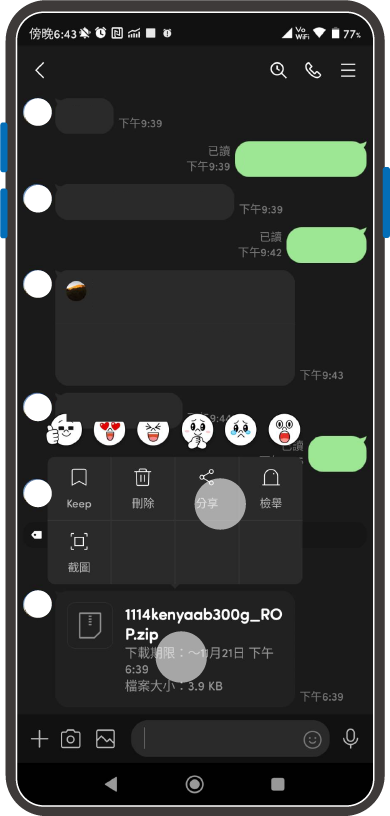
STEP 1: Long-press the file and tap Share.
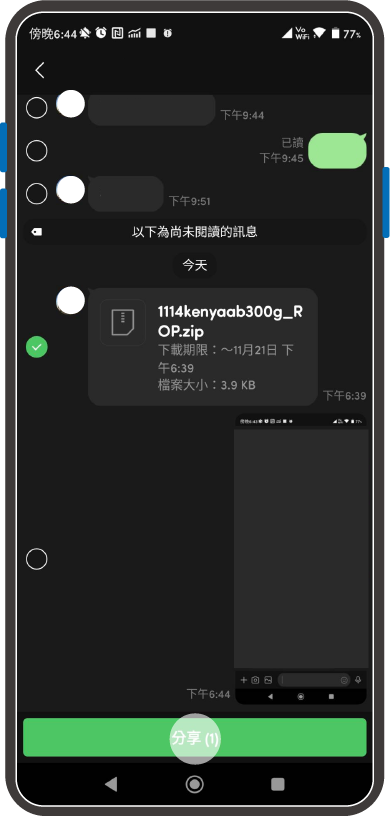
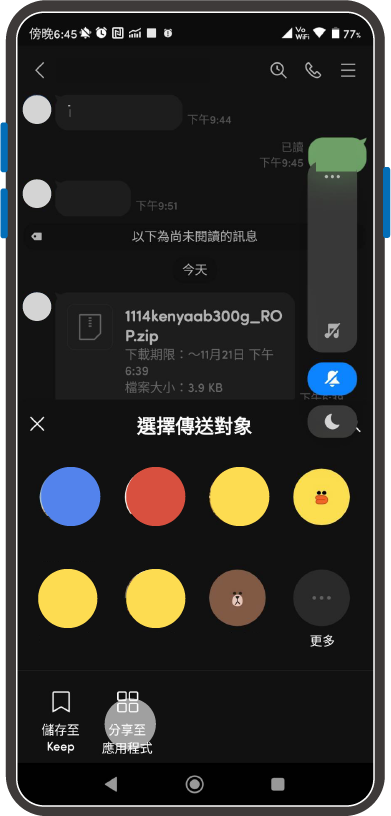
STEP 2: Tap Share to App (bottom left) and select Orbiter Roaster APP.
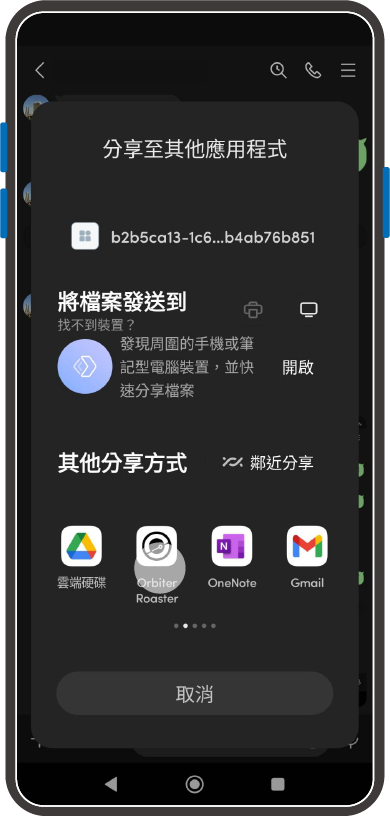
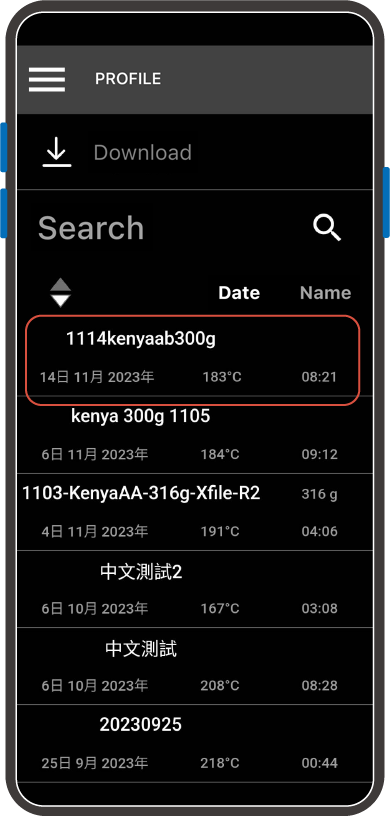
Once the download is complete, the file can be accessed in the Profile page.
How to Download Roasting Curves via E-mail [iOS]
STEP 1: Tap the compressed file to download it.
.png)
STEP 2: Tap the Share icon (bottom left) and select Orbiter Roaster APP to open the file.
.png)
Once the download is complete, the file can be accessed in the Profile page.