[Add Green Bean Information Field]
Note: Please first enter an individual Profile file and swipe the screen to the right to locate this field.



[Profile Download & Share Interface Update]
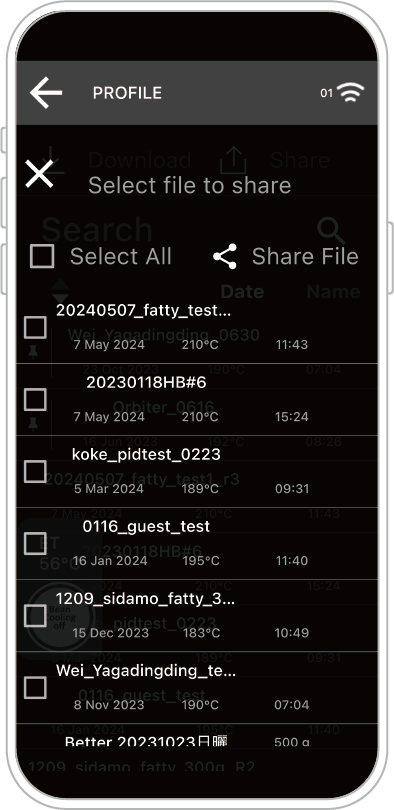
In the Profile page, you can tap Download and Share to select multiple files at once.
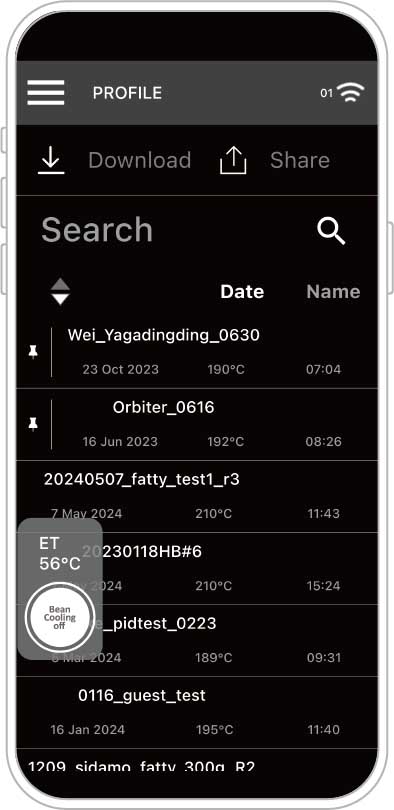
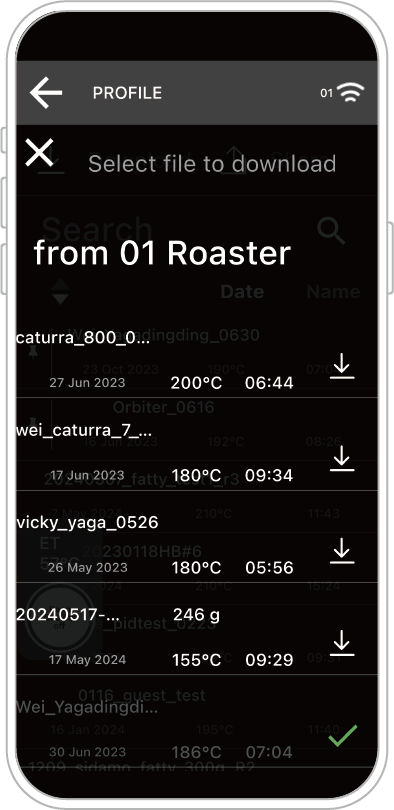
Note: Downloading local files requires a Bluetooth connection with the OB-1 Pro device.
[Overlay Curve Display]
During roasting, a reference curve can be displayed and overlaid with the current (new) roasting curve.
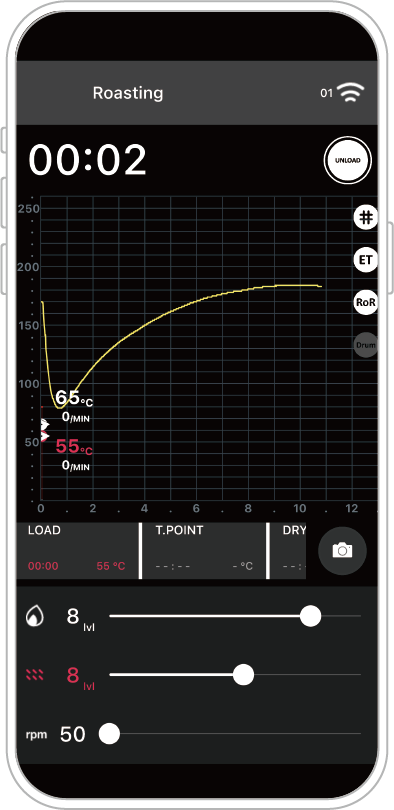
Entering Auto Roast mode will automatically display the overlay.
In Manual Roast mode, you can also display an overlay by selecting a reference curve. The steps are as follows:
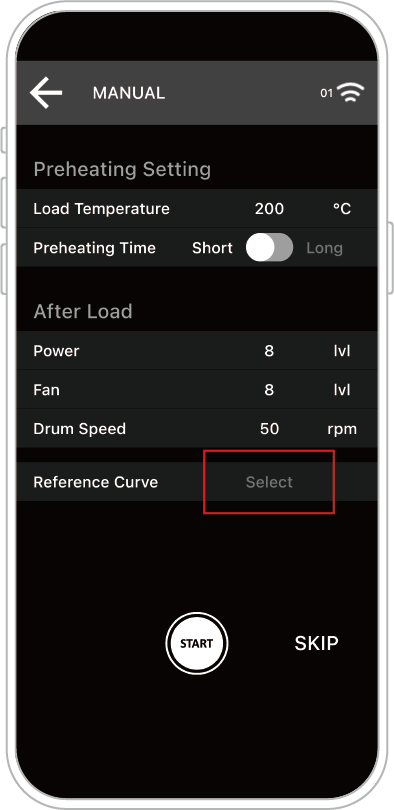
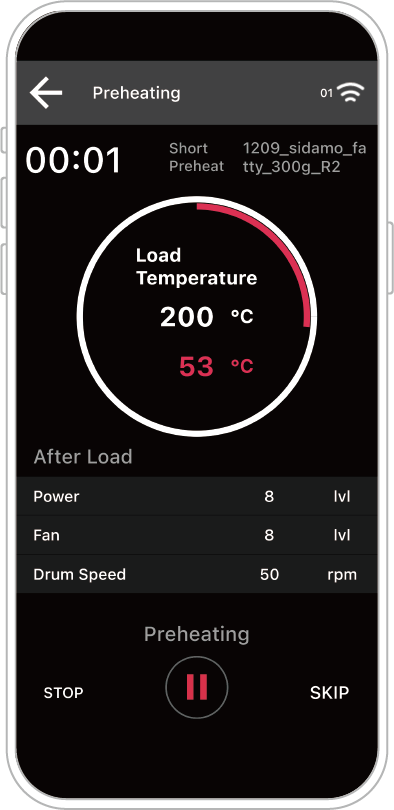
Tap and select a reference curve. During preheating, the reference curve name will appear at the top right of the screen.
After loading the beans, the overlay curve will be displayed as described above.
[Cooling Activation & Safe Shutdown Reminder]
Swipe the App screen from right to left to reveal three control buttons (from top to bottom):
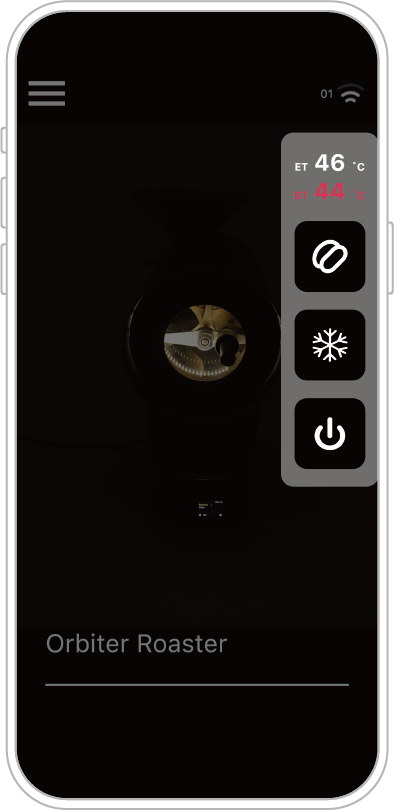
Bean icon: Turn on the bean cooling fan.
Cool Down icon: Initiates machine cooling (cooling ends when the machine temperature drops below 50°C).
Safe Shutdown icon: Prepares the machine for shutdown, lowers the temperature below 50°C, and indicates that it is safe to turn off the power.
[Long-Press Event Quick Jump]
In Profile, you can long-press a recorded roasting Event.
Example – T.POINT Event: Long-press the T.POINT block (on the Event bar), and the upper curve will quickly jump to the T.POINT, displaying ROR, temperature, and other information.
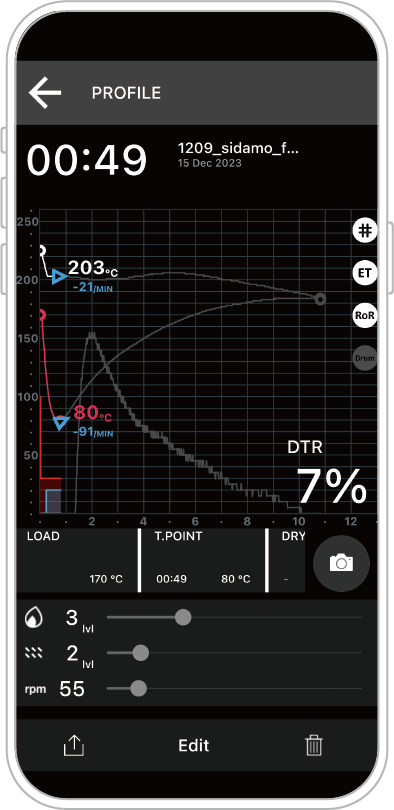
Additionally, a Camera icon has been added after the Event bar, allowing you to attach an image of the roasted coffee for that file.
[Profile Event Edit]
You can edit or modify roasting Event data within Profile.
Note: Please first enter an individual Profile file and swipe the screen to the right to locate this page.
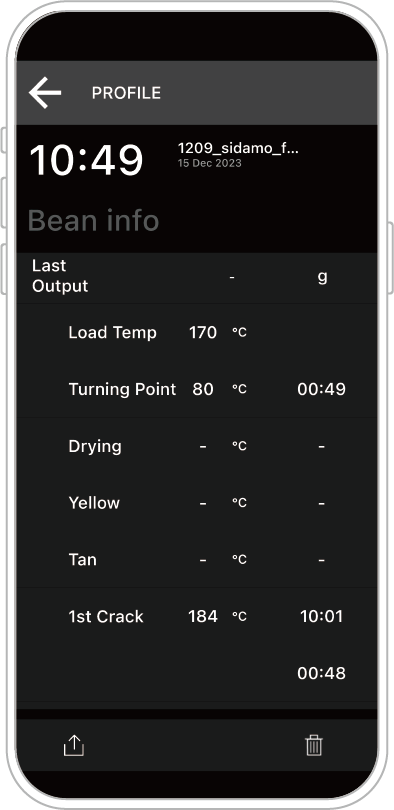
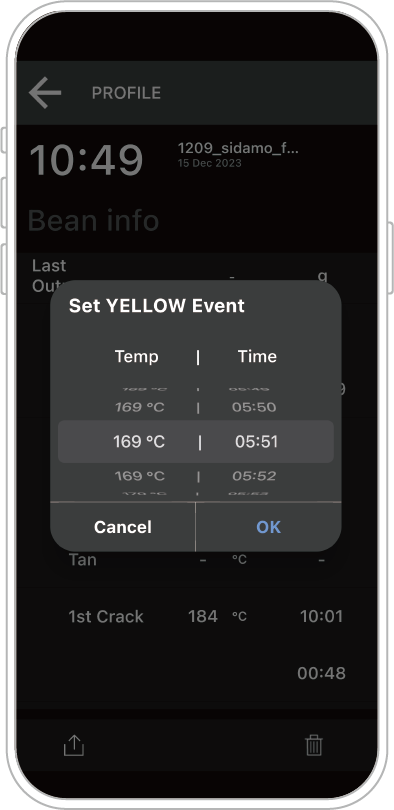
Long-press an Event to bring up the data modification options.
After making changes, tap OK to save.
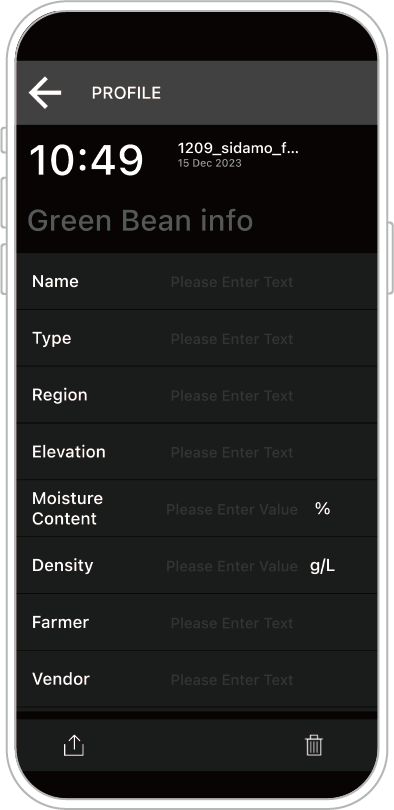
[Add Green Bean Information Field]
Note: Please first enter an individual Profile file and swipe the screen to the right to locate this field.
[Hold Function]
During preheating, long-press the circular Start / Pause button at the bottom of the screen to pause (extend) the preheating process.
This function is used to prevent the machine from continuing the roasting process when the operator is delayed in sorting beans or performing other tasks.
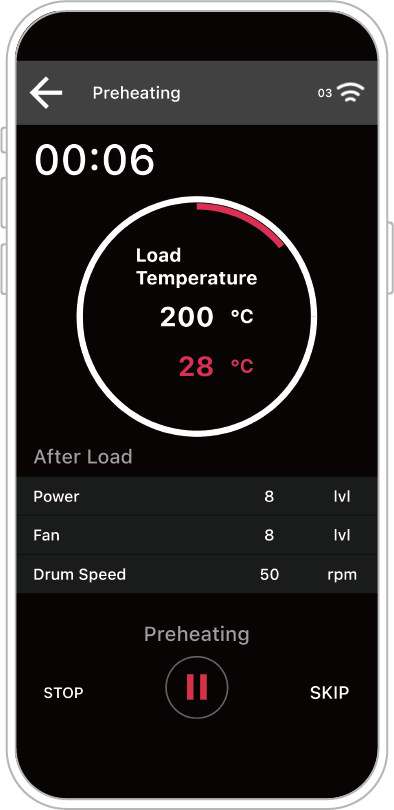
Note: STOP terminates the entire roasting operation, including the current preheating process.
If roasting is still required, you can use HOLD to flexibly adjust the operation.
This explanation combines the 1.0.4 version feature update and 1.1.1 version UI update.
[DTR Display]
(DTR: Development Time Ratio)
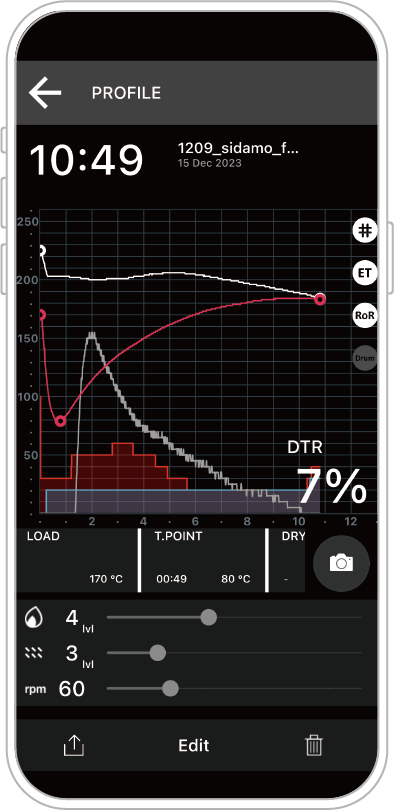
During roasting, tap the 1st Crack record in the Event bar to start calculating the DTR value.
After roasting, the DTR will be saved and displayed within the roasting data, as shown below.
[Profile Edit]
After completing a roast, you can edit the roasting data in Profile.
Tap Edit at the bottom to adjust heat power, airflow damper, and drum speed.
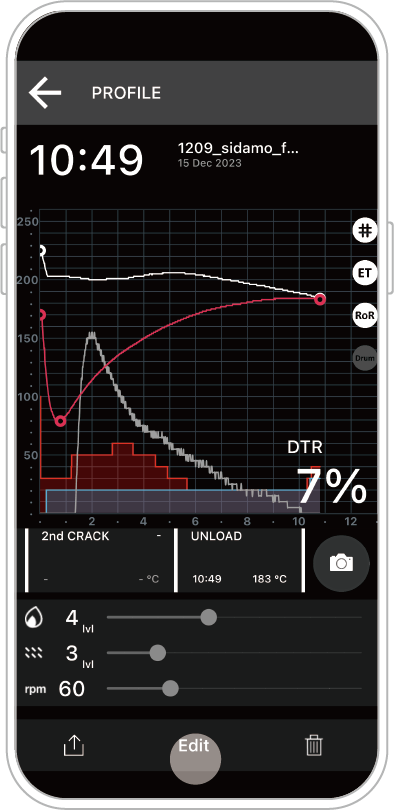
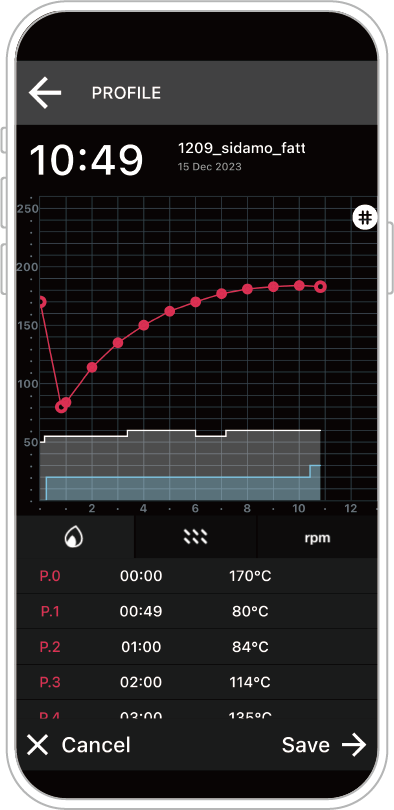
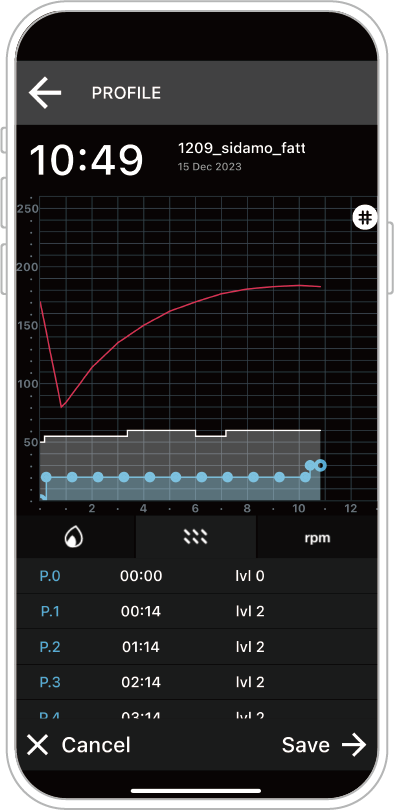
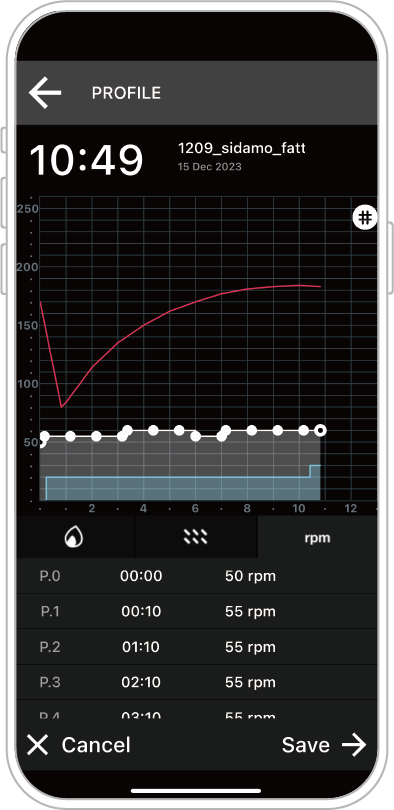
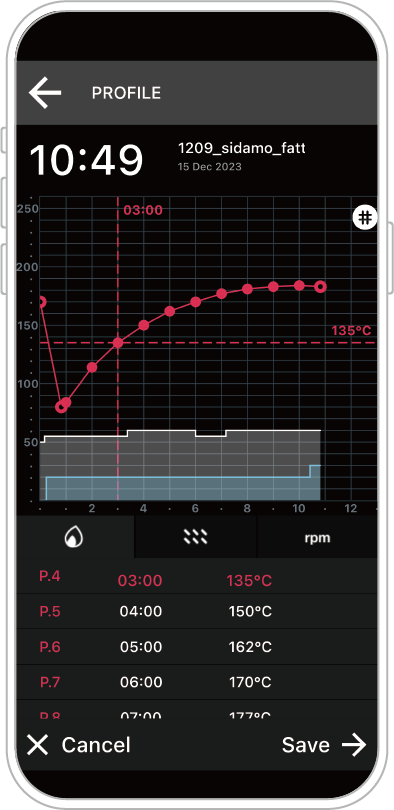
Long-press the dashed lines to slide.
Horizontal adjustment: modifies the time axis.
Vertical adjustment: modifies the value (e.g., temperature).
After finishing the edits, tap Save.
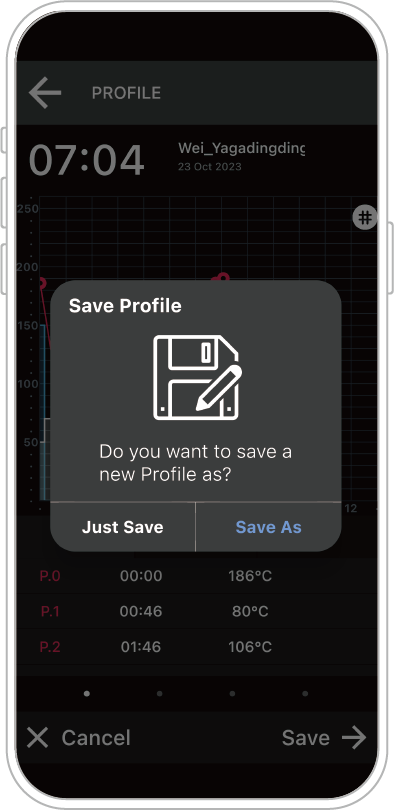
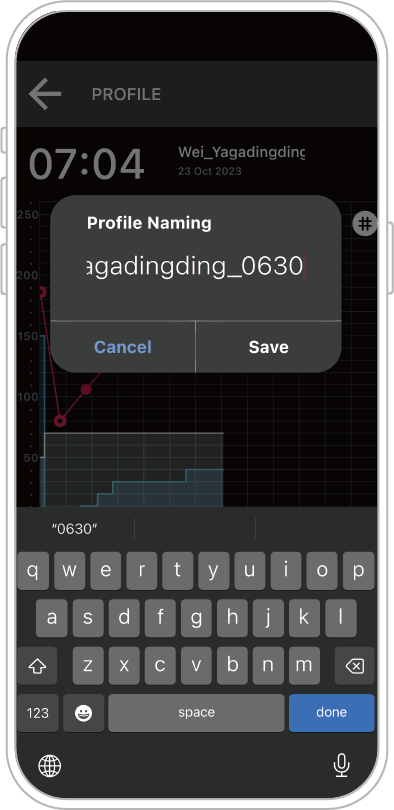
You can choose to Replace or Save As a new file.
In the example below, you can also rename the Profile.