
FAQ



Orbiter Roaster APP – Download Options



iOS (App Store)

Android (Google Play)
Basic Introduction
Tap the Top-Left to Open the Operation Page
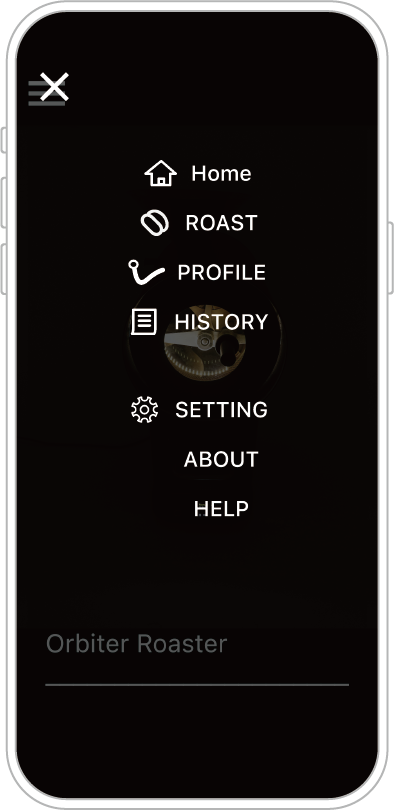
Home – Main Screen: Standby page. Some standby functions can be operated directly from this screen.
For detailed functions, please refer to the “Features & Design Updates” section
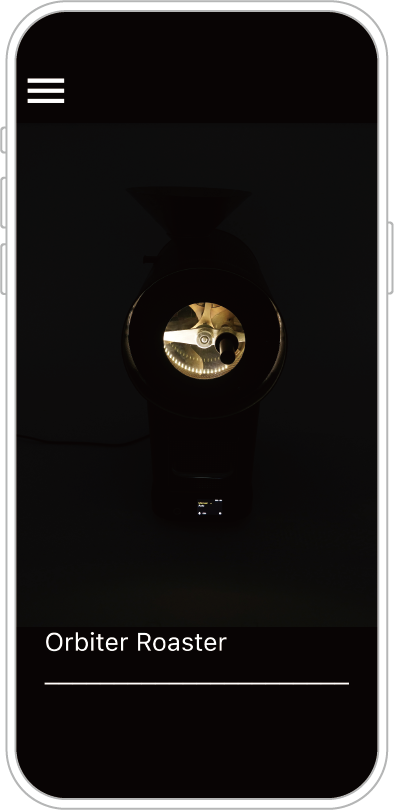
ROAST – Roasting Operation: Enter this page to pair with the roaster.
Once connected, you can monitor the process or perform roasting in Manual / Automatic mode.
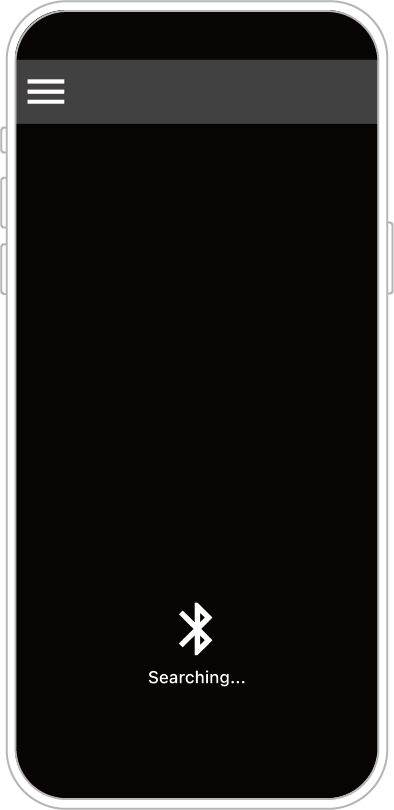
PROFILE – Roasting Curves: Review, edit, or modify saved roasting curves.
You can also add cupping information or select a curve for automatic roasting.
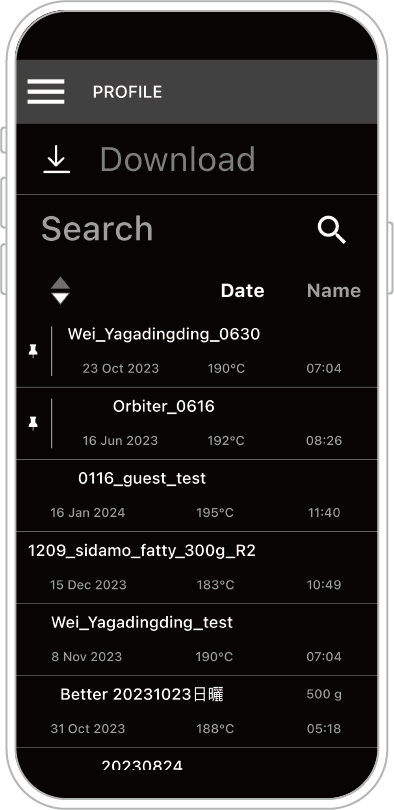
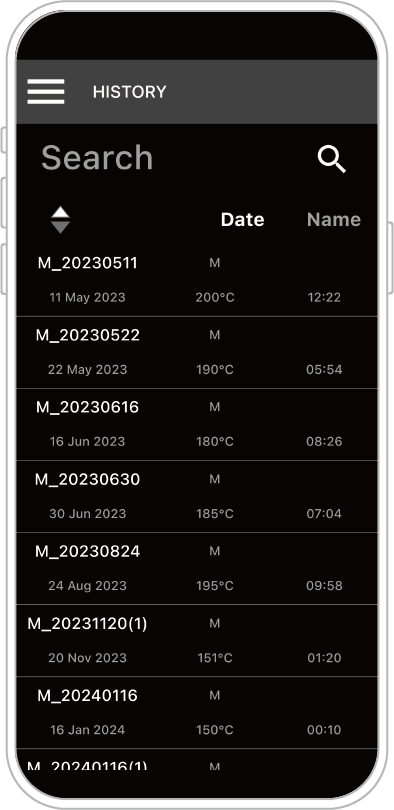
HISTORY – History Records: If roasting data has not been saved as a curve,
it will automatically remain in History. Data can be reviewed or converted to a curve later.
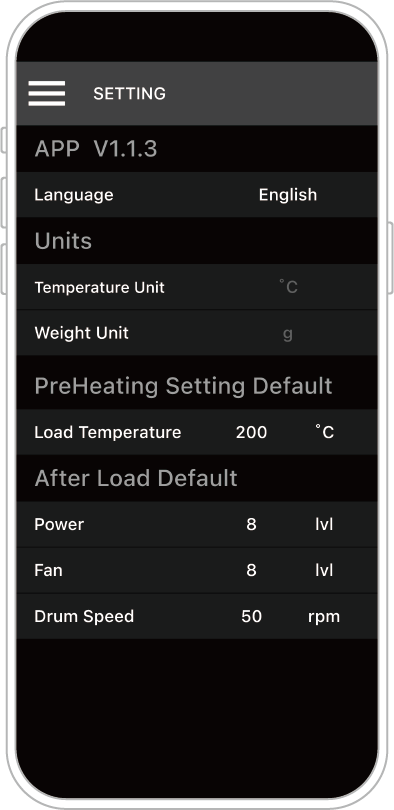
SETTING – Settings: Check the APP version, change language settings,
adjust bean drop temperature, and modify default roasting parameters after bean drop.
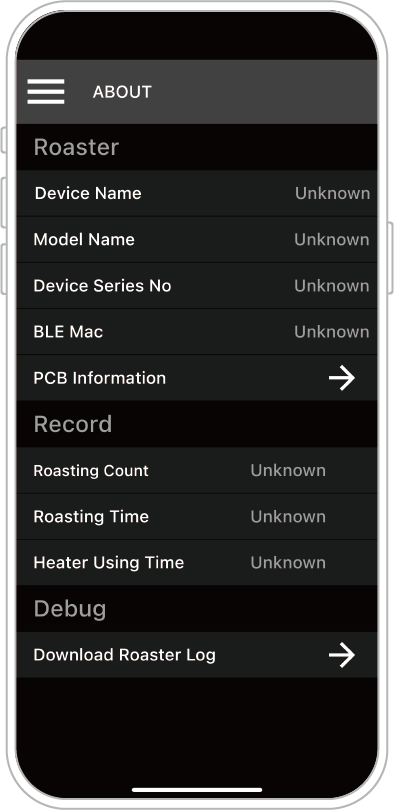
ABOUT – About: View machine-related information and usage records while connected.
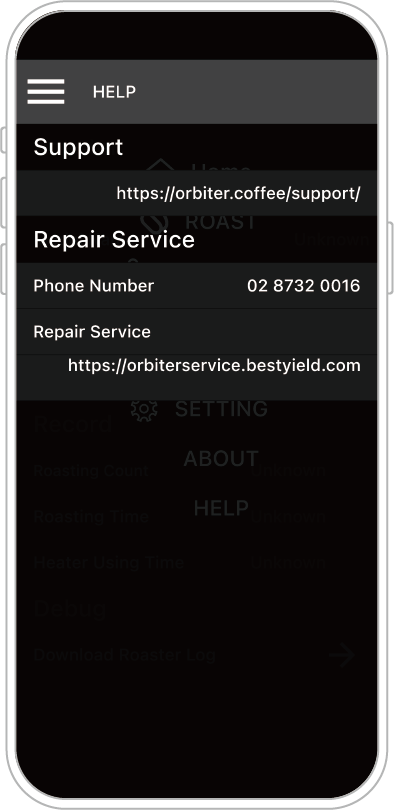
HELP – Help: Access the repair system website from this page.
Home – Main Screen: Standby page. Some standby functions can be operated directly from this screen.
For detailed functions, please refer to the “Features & Design Updates” section
ROAST – Roasting Operation: Enter this page to pair with the roaster.
Once connected, you can monitor the process or perform roasting in Manual / Automatic mode.
PROFILE – Roasting Curves: Review, edit, or modify saved roasting curves.
You can also add cupping information or select a curve for automatic roasting.
HISTORY – History Records: If roasting data has not been saved as a curve,
it will automatically remain in History. Data can be reviewed or converted to a curve later.
SETTING – Settings: Check the APP version, change language settings,
adjust bean drop temperature, and modify default roasting parameters after bean drop.
ABOUT – About: View machine-related information and usage records while connected.
HELP – Help: Access the repair system website from this page.
Important Notice – Cleaning Warning
[ Silver Skin Container and Waste Tray Cleaning Warning ]
After roasting, if a cleaning prompt appears, please empty the silver skin container and the waste tray of residual skins.
Excessive accumulation of waste may cause airflow blockage or even fire. Regular cleaning of the equipment is strongly recommended.
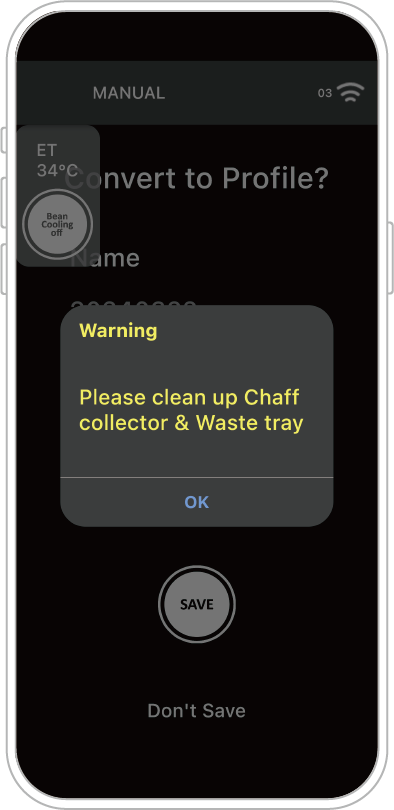
Since the amount of waste generated depends on the type of beans and their processing method,
if a large amount of silver skin is observed, cleaning frequency should be increased.
Reminder: Do not perform cleaning during the roasting process to avoid burns from high temperatures.
During the bean cooling process, do not remove the waste tray to prevent ash from entering the bean container.
After roasting, if a cleaning prompt appears, please empty the silver skin container and the waste tray of residual skins.
Excessive accumulation of waste may cause airflow blockage or even fire. Regular cleaning of the equipment is strongly recommended.
Since the amount of waste generated depends on the type of beans and their processing method,
if a large amount of silver skin is observed, cleaning frequency should be increased.
Reminder: Do not perform cleaning during the roasting process to avoid burns from high temperatures.
During the bean cooling process, do not remove the waste tray to prevent ash from entering the bean container.
Notice – Naming Conventions for Roasting Curve ZIP Files
[ Roasting Curve Naming Guidelines ]
Please check the original file name to ensure that “prohibited special characters” are not used, such as:
\ / : * ? " > < |
If the file name contains any prohibited special characters, the file may not open correctly when shared with others and may display an error.
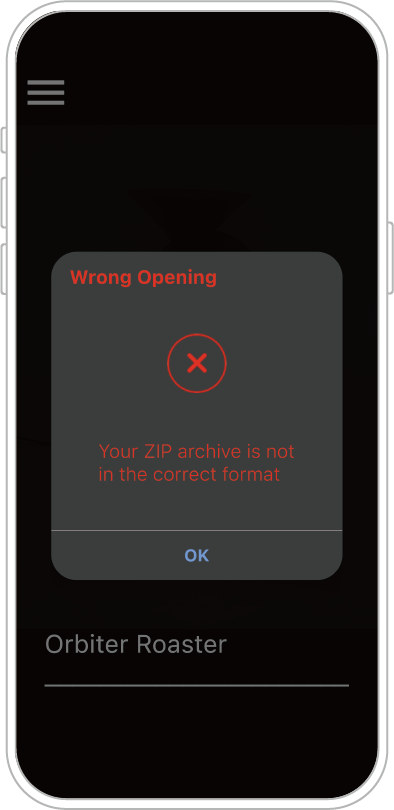
How to Download OB-1 Machine History Records via the APP
“On-Device Roasting” automatically saves roasting curves to HISTORY (temporary storage).
To view previously saved roasting data from the machine, use a smartphone or tablet with the ORBITER ROASTER APP installed.
Reminder: Ensure that the APP is paired with the machine via Bluetooth before proceeding.
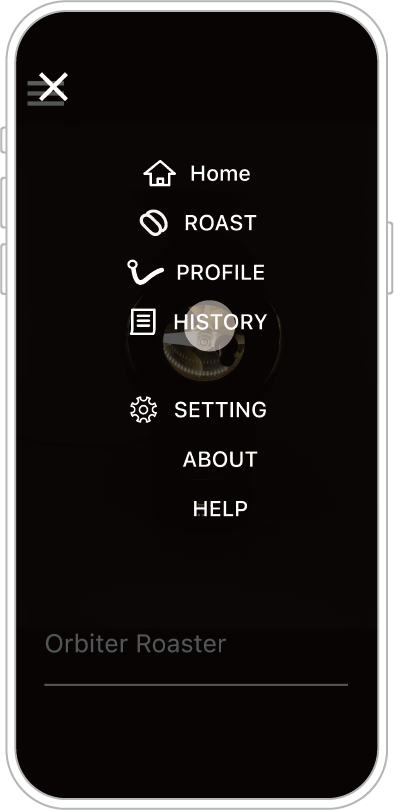
STEP 1: Tap HISTORY.
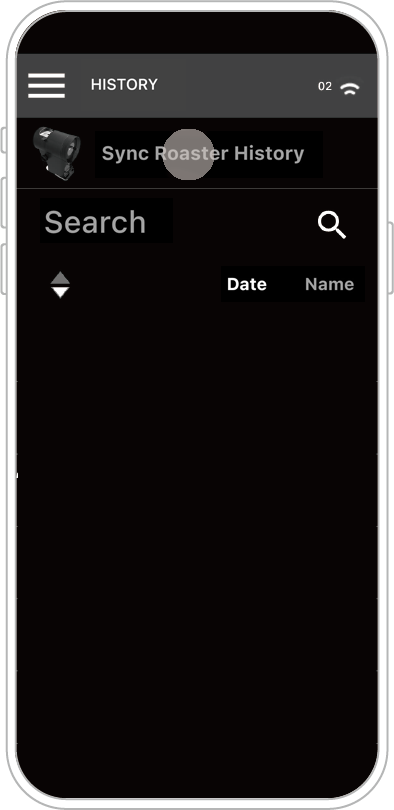
STEP 2: Tap Sync Roaster History at the top of the screen.
(If it does not appear, check whether the Bluetooth connection is successful.)
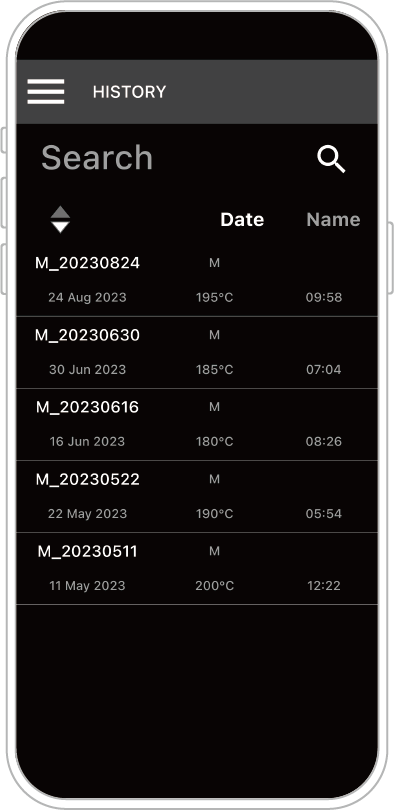
Once successfully loaded, the screen will display the machine’s temporary data.
You can tap each roasting record to view its details.
How to Convert APP History Records into Roasting Curves
History (History) allows users to temporarily store roasting curve data and notes.
You can decide whether to delete or convert the data into a Roasting Curve based on the flavor profile of the roast.
Roasting Curves (Profile) are commonly used curves that can be edited and adjusted by the user.
Reminder: Only data converted to Roasting Curves can later be used for automatic roasting with the same curve (Fully Automatic Roasting).
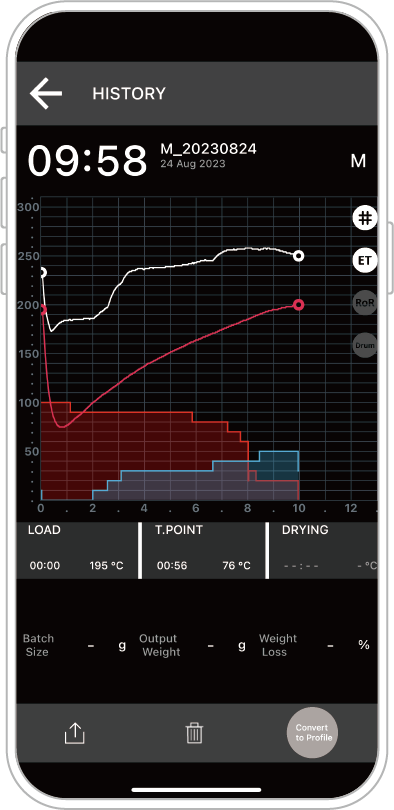
STEP 1: Tap HISTORY.
STEP 2: Select the record you want to convert.
STEP 3: Tap Convert to Roasting Curve at the bottom right.
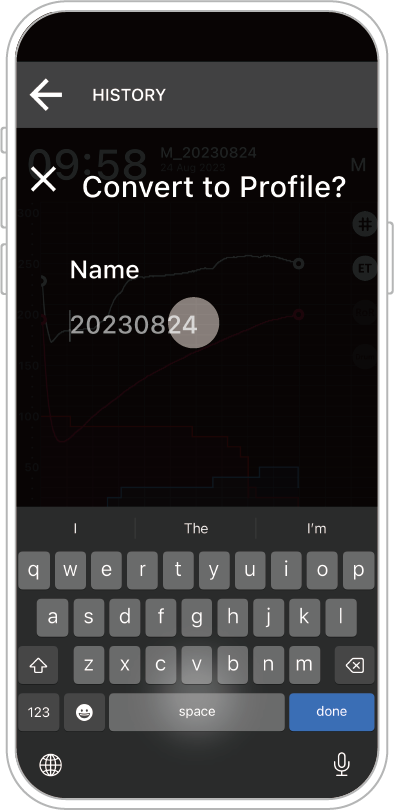
STEP 4: Enter a name for the curve.
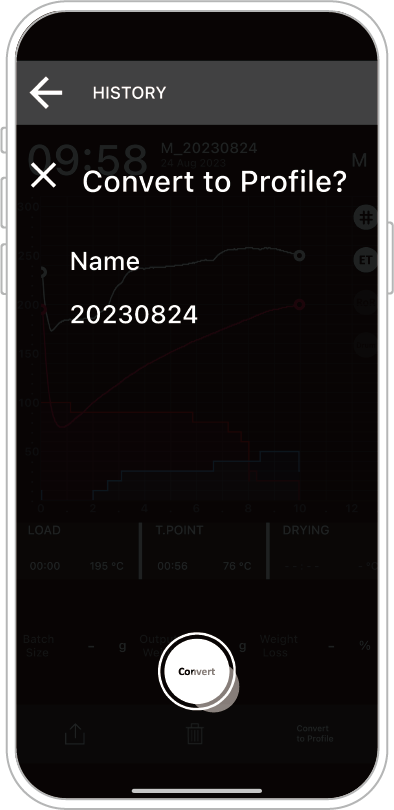
STEP 5: Confirm the conversion.
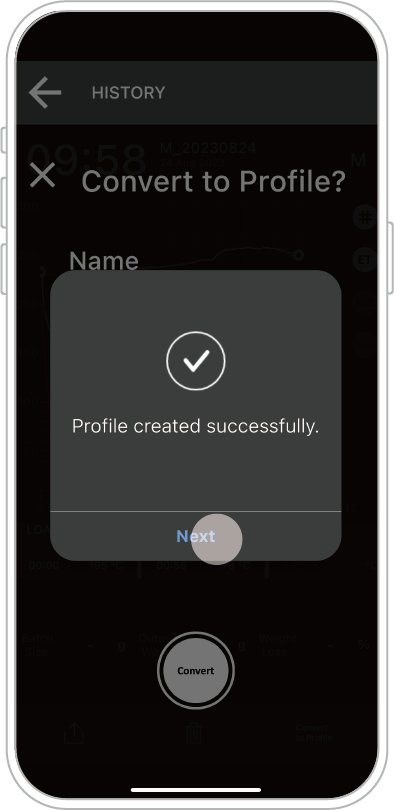
After Conversion:
The converted data will appear in the Profile page as a new Roasting Curve.
How to Perform Copy Roasting / Continuous Roasting via the APP
Reminder: Ensure that the APP is paired with the machine via Bluetooth and that the roasting curve data is opened in PROFILE.
The connection icon at the top right (e.g., “03” in this example) indicates that the machine is still connected.
If your device does not have any Roasting Curve data, please refer to the APP roasting video or the section “Converting APP History Records to Roasting Curves.”
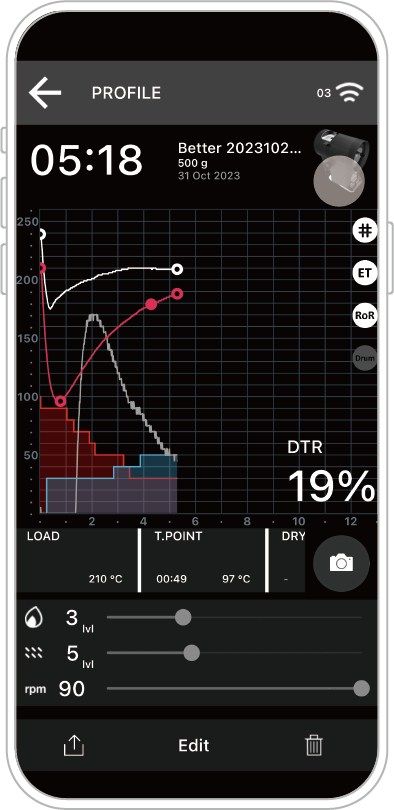
STEP 1: Tap the Copy Roasting Icon (roaster icon).
The machine will automatically perform the copy roasting for the selected curve.
How to Skip the Automatic Preheating Process via the APP
Description: The machine's Automatic Preheating temperature range is set between 150℃–230℃,
based on the recommended preheating range for this model. Temperatures below or above this range are excluded due to potential issues such as poor roasting efficiency, overflow, or inconsistent flavor development.
For roasting flexibility, operators can still perform manual preheating to control the bean loading timing, as described below.
At the Preheating page, tap SKIP at the bottom right to perform manual preheating (control the bean loading time and temperature manually).
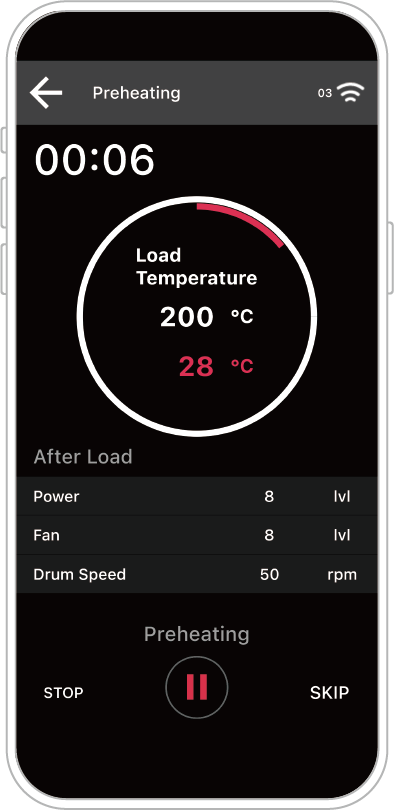
STEP 1: Tap SKIP to enter the Preheating control page.
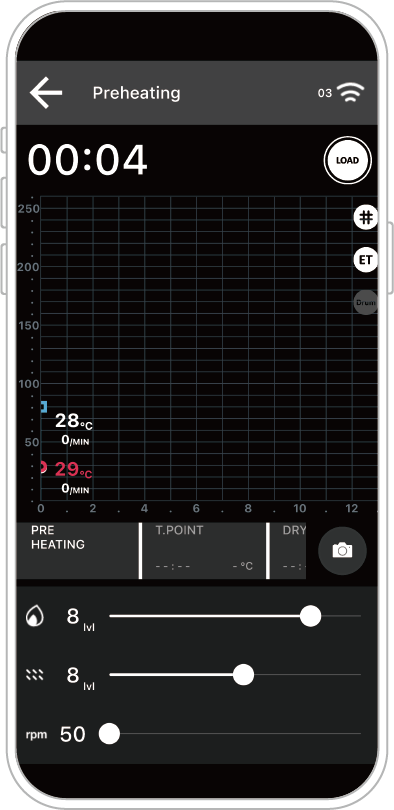
The machine will operate based on the parameters set by the operator (heat power, airflow damper, drum speed).
Operators can decide the bean loading time according to the displayed data (temperature and Rate of Rise – ROR).
STEP 2: When ready to load beans, tap the white circular LOAD icon at the top right.
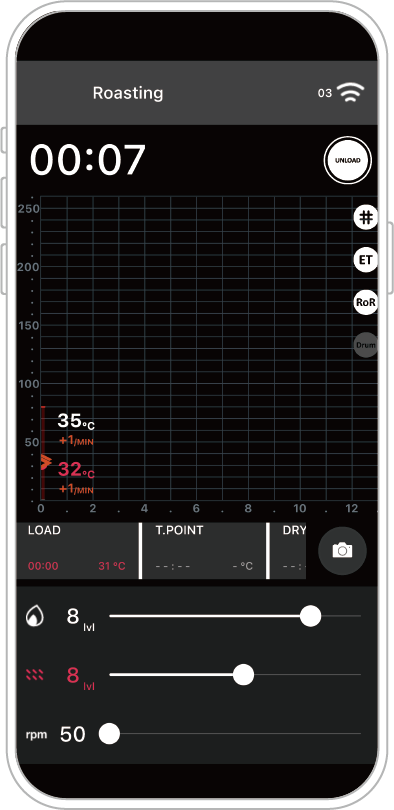
The roasting process will begin, and the ROASTING indicator will appear at the top left.
In the middle of the screen, the Event section displays the time and temperature at LOAD (as shown in the example, red text information).
How to Upload APP Roasting Curves to the OB-1 Machine
Reminder: Ensure that the APP is paired with the machine via Bluetooth.
(If successfully connected, the connection icon will appear at the top right.)
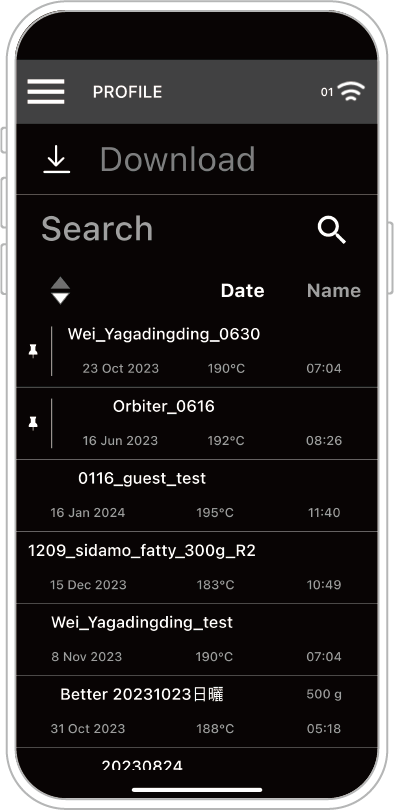
STEP 1: In PROFILE, select the roasting curve you want to upload.
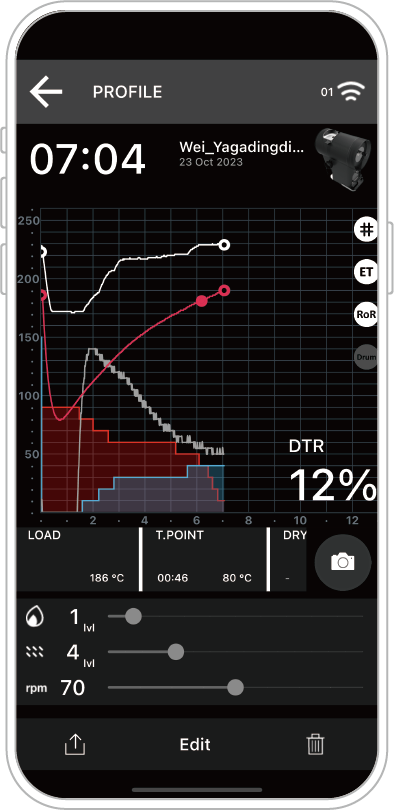
STEP 2: Tap the Upload icon at the bottom left (to the left of Edit).
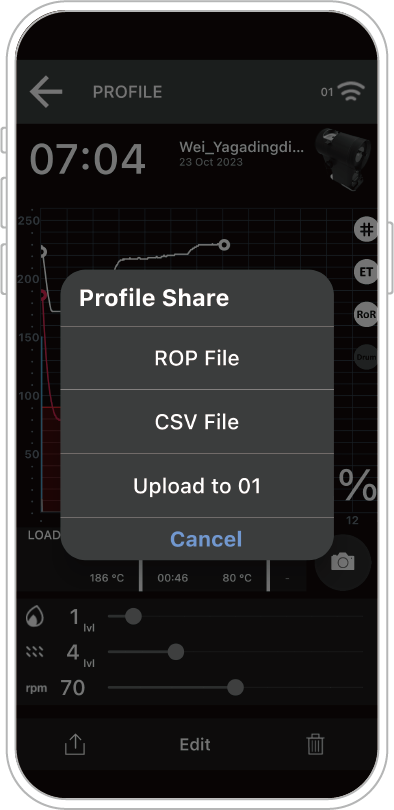
STEP 3: Choose Upload to Machine.
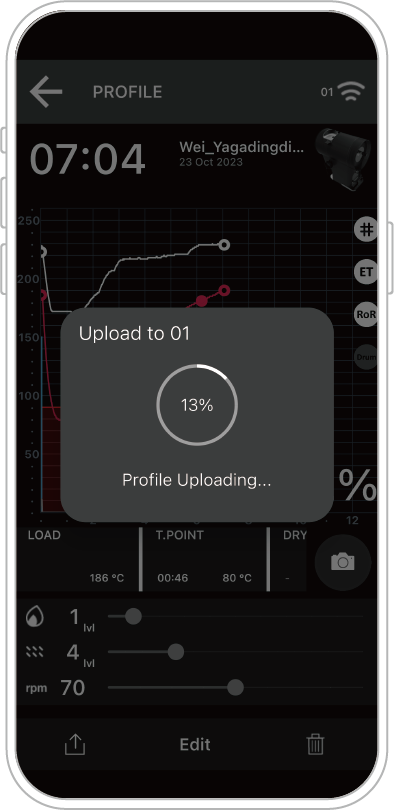
The selected curve will be uploaded to the OB-1 Pro machine.
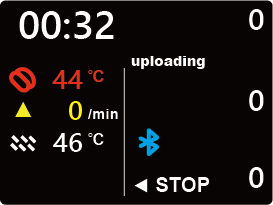
During the process, the machine screen will display Uploading.
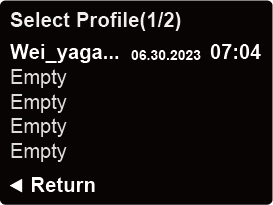
Once completed, the uploaded curve can be found under AUTO on the machine.
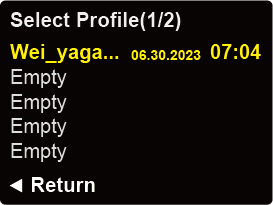
Once completed, the uploaded curve can be found under AUTO on the machine.
Select the curve (it will turn yellow) and press down to start Automatic Roasting.
Note: With Machine Automatic Roasting (AUTO), the phone’s Bluetooth connection is not required for fully automatic operation.
Is there a cost associated with using the app?
We offer a free app for support, which you can download and use according to your preferences.